
← Back to Use Cases
Immich: Self-Hosted Google Photos Alternative on Intel N100 (2026)
Replace Google Photos with Immich on your home server. Complete Docker Compose setup on Intel N100, machine learning face recognition, mobile app configuration, and backup automation.
Published Mar 24, 2026Updated Mar 24, 2026
google-photos-alternativeimmichmachine-learningn100photo-backupself-hosted
Tired of paying for Google Photos storage and handing over your personal memories to a third party? With a modern low-power mini PC like the Intel N100, you can run your own private, feature-rich photo backup service that rivals the big tech offerings. This guide will walk you through setting up Immich, the leading self-hosted Google Photos alternative, on a budget-friendly, energy-efficient home server.
What It Is and Why Self-Host It
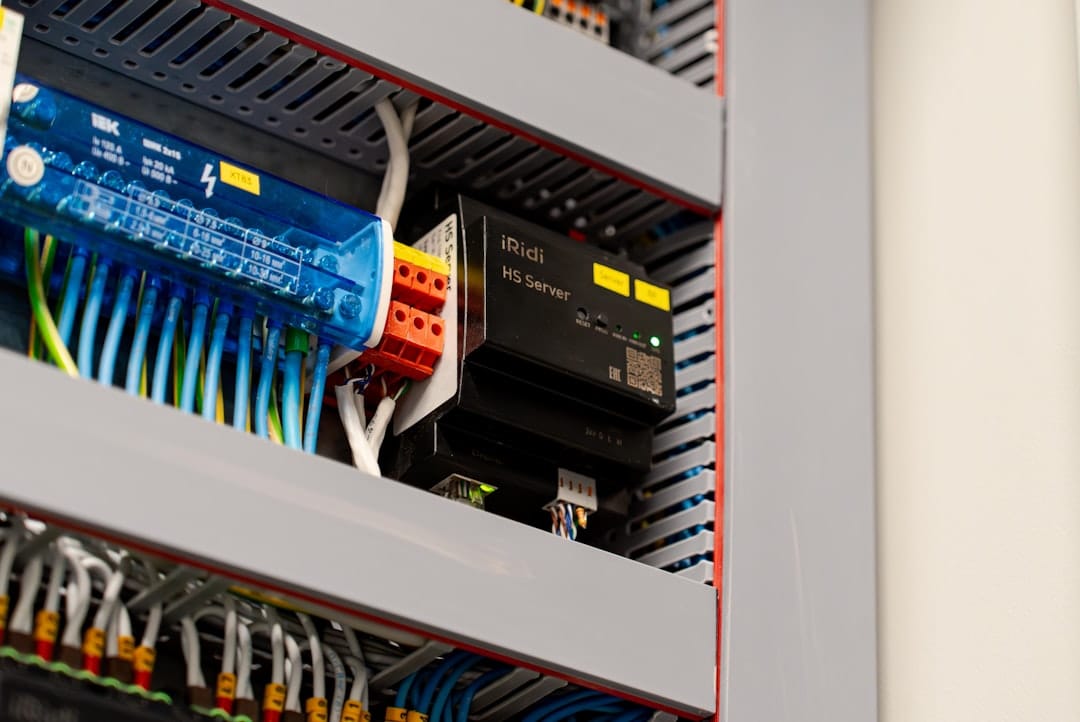
Immich is an open-source, self-hosted photo and video backup solution designed from the ground up to be a direct replacement for services like Google Photos. It provides a clean web interface and robust mobile apps for automatic uploads, but with one critical difference: you own all your data. Your photos stay on hardware you control, in a location you choose.
The reasons to self-host your photo library are compelling. First is privacy and ownership. When you use a cloud service, you're often granting a company a broad license to use your uploaded content. With Immich, your family photos, vacation videos, and personal moments never leave your network unless you explicitly set up a remote backup. Second is cost control. While Google Photos and others use a subscription model that increases over time, a one-time investment in a small server can provide storage for years without recurring fees. Third is feature independence. You're not subject to the whims of a company that might discontinue a beloved feature or change its pricing structure unexpectedly.
For the home server enthusiast, Immich is a perfect "killer app." It justifies the existence of your homelab by solving a real, everyday problem for you and your family. It leverages modern tools like Docker, machine learning, and responsive web design to deliver a polished experience that feels like a commercial product, but with the transparency and control of open source.
Prerequisites

Before diving into the installation, you'll need to have a few things in place. This guide assumes you are starting with a fresh installation of a Linux server on compatible hardware.
Hardware:
- A Mini PC or SBC: The star of our show is a mini PC with an Intel Processor N100. This modern, ultra-efficient CPU (6W TDP) is a powerhouse for its class, with 4 cores and solid performance for machine learning tasks. Great options include the Beelink S12 Pro or the MINISFORUM UN100. A Raspberry Pi 5 (8GB) is also a viable, albeit slightly less powerful, alternative.
- RAM: 8GB is the recommended minimum. Immich's machine learning services for object and face recognition can be memory-hungry. 16GB is ideal for larger libraries and smoother performance.
- Storage: This is the most important factor. Plan for ample, reliable storage. A 1TB or larger NVMe SSD is perfect for the database and application. Your photo library should be stored on a separate, larger drive—consider a 4TB+ 2.5" SATA SSD or HDD for capacity. Always have a backup strategy for this data.
- Power Supply: Use the manufacturer's provided power adapter to ensure stability.
Software:
- Operating System: A headless (no desktop) Linux distribution. Ubuntu Server 22.04 LTS or Debian 12 are excellent, stable choices.
- Docker & Docker Compose: Immich is deployed as a set of interconnected containers. You must have Docker Engine and Docker Compose Plugin installed.
- Basic Comfort with CLI: You should be able to connect to your server via SSH, navigate directories, and edit text files using a tool like
nanoorvim.
Network:
- A stable home network.
- The ability to forward a port on your router (for remote access) or set up a secure VPN (recommended for most users).
- A domain name (optional but recommended for SSL) or a Dynamic DNS service if your home IP changes.
Docker Compose Installation

We'll run Immich using Docker Compose, which manages all its required services in a single, declarative file. First, connect to your server via SSH.
-
Create a dedicated directory for Immich:
sudo mkdir -p /opt/immich && cd /opt/immich -
Download the official
docker-compose.ymlfile: It's best to get the latest version from the Immich GitHub repository.sudo wget -O docker-compose.yml https://raw.githubusercontent.com/immich-app/immich/release/docker/docker-compose.yml -
Create the necessary environment file: This file holds your specific configuration secrets.
sudo nano .envPaste the following configuration into the file. You must change the
DB_PASSWORD,REDIS_PASSWORD, andJWT_SECRETto strong, unique values. Generate a strong JWT_SECRET withopenssl rand -base64 128.# PostgreSQL Database DB_HOSTNAME=immich_postgres DB_USERNAME=postgres # !! CHANGE THIS PASSWORD !! DB_PASSWORD=your_super_secure_db_password_here DB_DATABASE_NAME=immich # Redis for caching and queues REDIS_HOSTNAME=immich_redis # !! CHANGE THIS PASSWORD !! REDIS_PASSWORD=your_super_secure_redis_password_here # Immich Core Settings IMMICH_WEB_URL=http://your-server-local-ip:2283 # Or https://your-domain.com IMMICH_SERVER_URL=http://immich-server:3001 # !! GENERATE & CHANGE THIS SECRET !! JWT_SECRET=your_generated_jwt_secret_here # Machine Learning (ML) Settings ML_CORE_URL=http://immich-machine-learning:3003 # Set to 'cpu' for N100/RPi5, 'openvino' for Intel GPU acceleration (experimental on N100) ML_CORE_ACCELERATION=cpu # Upload File Location (Point this to your large storage drive) UPLOAD_LOCATION=/path/to/your/photos/librarySave the file (Ctrl+X, then Y, then Enter in
nano). -
Create the directory for your photo library as specified in
UPLOAD_LOCATION:sudo mkdir -p /path/to/your/photos/library sudo chown -R 1000:1000 /path/to/your/photos/library -
Launch Immich: From within the
/opt/immichdirectory, run:sudo docker compose up -dDocker will pull all the necessary images and start the containers. This may take several minutes on a first run. You can monitor the logs with
sudo docker compose logs -f.
Once the containers are running, Immich's web interface will be available at http://YOUR_SERVER_IP:2283.
Initial Configuration
Navigate to http://YOUR_SERVER_IP:2283 in your browser. You'll be greeted with a registration page.
- Create Admin Account: Enter your name, email, and password to create the first (administrator) user. This is your main login.
- Dashboard Walkthrough: After logging in, you'll see the main dashboard. It will be empty. Take a moment to explore the left-hand sidebar: Timeline, Photos, Albums, Sharing, and the Admin Panel (wrench icon).
- Admin Settings: Click the wrench icon. Here are the key initial settings:
- System Settings: Review default settings. You can adjust the video conversion bitrate later if needed.
- User Management: You can create additional accounts for family members here.
- Storage Template: Confirm the
UPLOAD_LOCATIONis correct.
- Mobile App Setup: This is the core of the backup experience.
- Install the "Immich" app from the iOS App Store or Google Play Store.
- Open the app. For "Server Endpoint," enter
http://YOUR_SERVER_IP:2283(or your domain if configured). - Log in with your admin credentials.
- Go to the app's Settings > Backup. Enable "Backup". Configure your preferences:
- Backup on Cellular: Disable unless you have unlimited data.
- Backup when charging: Recommended to save battery.
- Include videos: Enable.
- Tap "Start Backup". Your phone will now begin uploading photos and videos to your server.
Key Features & How to Use Them
Immich is packed with features that directly compete with Google Photos. Here’s how to use the most important ones.
Automatic Mobile Backup: As configured above, this is the set-and-forget feature. The app runs in the background, uploading new media seamlessly.
Face Recognition & People Album: Immich uses machine learning to cluster faces.
- How it works: After upload, the ML container scans photos for faces. Go to the "People" album in the sidebar. You'll see clusters of unrecognized faces.
- Training it: Click a cluster, name the person (e.g., "Jane"), and hit save. Immich will use this to find other photos of Jane and suggest merges. This improves dramatically over time.
Object & Scene Search: You can search your library using natural language.
- Examples: Type "beach," "car," "wedding," "snow," or "dog" into the main search bar. The ML model has been trained on millions of images and can identify a vast array of objects, scenes, and attributes.
Shared Albums & Partner Sharing:
- Albums: Create an album, add photos, and click the share icon. You can generate a public link (read-only) or share it with another registered user on your server.
- Partner Sharing: In the "Sharing" section of the sidebar, you can establish a two-way, automatic sharing relationship with another user (e.g., your spouse). All your new photos are automatically visible to them and vice-versa, mimicking Google Photos' partner sharing.
Map View: Photos with GPS metadata (most from smartphones) are plotted on an OpenStreetMap-based global map. Click "Places" in the sidebar to browse by location.
Archive & Favorites: Keep your timeline clean.
- Select photos and click the archive icon (box) to remove them from the main timeline without deleting them. Access archived items via the sidebar.
- Click the heart icon on a photo to add it to "Favorites."
Performance on Low-Power Hardware
A common concern is whether a low-power chip like the Intel N100 can handle the machine learning demands of face and object recognition. The short answer is yes, but with managed expectations.
Resource Usage Breakdown:
| Task | Intel N100 (16GB RAM) | Raspberry Pi 5 (8GB RAM) | Notes |
|---|---|---|---|
| Idle (No Activity) | CPU: 1-3%, RAM: ~2.5GB | CPU: 2-5%, RAM: ~2GB | Base footprint of all containers. |
| Mobile Backup (Upload) | CPU: 5-15%, RAM: ~3GB | CPU: 10-25%, RAM: ~2.5GB | Light load, mostly I/O on storage. |
| ML Scanning (Face/Object) | CPU: 60-95%, RAM: ~5GB | CPU: 100%, RAM: ~4.5GB | All cores utilized. Scan speed is limited. |
| Video Transcoding | CPU: 40-80%, RAM: ~3GB | CPU: 100%, RAM: ~3GB | Converting for web playback. |
Performance Notes for N100/RPi5:
- Initial Scan is Slow: When you first upload a large library (thousands of photos), the ML scan will take days, not hours. This is normal. The server will remain usable for backups and browsing during this time. Let it run.
- Incremental Scans are Fast: Once the initial backlog is processed, new photos are scanned quickly, usually within minutes of upload.
- Search is Instant: After faces and objects are indexed, searching is lightning-fast as it queries the database, not the ML model.
- Recommendation: Schedule ML activities. You can adjust the Machine Learning settings in the Admin Panel to only run between, say, 1 AM and 6 AM, so it doesn't compete with daytime usage.
Power Consumption: With an Intel N100 mini PC, a single NVMe SSD, and no external HDDs, the entire system typically idles between 8W and 12W, well within our target. Under full ML load, it may peak around 20-25W.
Tips & Best Practices
- Storage is Not a Backup: Your Immich server is a primary copy. Protect it with a 3-2-1 Backup Strategy: 3 total copies, on 2 different media, with 1 offsite. Use
rcloneto back up yourUPLOAD_LOCATIONto a cloud service like Backblaze B2 or another remote server. - Use a Reverse Proxy & SSL: For secure remote access, place Immich behind a reverse proxy like Nginx Proxy Manager or Caddy. This allows you to use a domain name with a free SSL certificate from Let's Encrypt (
https://). - Tune the Machine Learning: In Admin Panel > Machine Learning, you can classify images as
all,none, orvideo only. If your library has many non-person photos, setting it tononecan speed up initial scanning, as face recognition is the most intensive task. - Manage Library Growth: Use the "Archive" feature liberally. Archive screenshots, memes, and temporary photos to keep your main timeline meaningful.
- Family Onboarding: Create separate user accounts for family members. This keeps libraries separate and allows for selective sharing. Teach them how to use the mobile app's backup settings.
Troubleshooting
- Containers won't start: Run
sudo docker compose logsto see error messages. Most often, it's an issue with the.envfile (wrong path, missing password) or a port conflict (something else is using port 2283). - "Failed to connect to server" in mobile app: Double-check the server URL. If accessing remotely, ensure port 2283 is forwarded on your router and your firewall (e.g.,
sudo ufw allow 2283). Using a reverse proxy is a more secure solution. - Face recognition not working/very slow: Confirm the
immich-machine-learningcontainer is running (sudo docker compose ps). Check its logs for errors. On first run, it downloads large model files (~500MB); this can take time on slow internet. EnsureML_CORE_ACCELERATIONis set tocpuin your.envfile for compatibility. - Low disk space on system drive: The database and model files live on your Docker volume path (usually
/var/lib/docker). If your system drive is small, you may need to move Docker's data directory to your larger storage drive. - Uploads failing: Check permissions on the
UPLOAD_LOCATIONdirectory. It must be owned by the user inside the container (UID 1000). Thechown -R 1000:1000command in the installation step sets this.
Conclusion
Setting up Immich on an Intel N100 mini PC represents a perfect synergy of modern, efficient hardware and powerful, open-source software. For a one-time investment well under $300, you gain a permanent, private, and highly capable photo management system that cuts the cord from subscription services. While the initial machine learning scan requires patience, the day-to-day experience—automatic backups from your phone, fast searching by person or subject, and easy sharing with family—is impressively smooth and rewarding.
You are not just building a server; you are reclaiming your digital memories. The low power draw means you can run it 24/7 without guilt, creating a living, growing family archive that you truly control. Dive in, upload your first photos, and enjoy the peace of mind that comes from self-hosting.
You may also like

Use Cases
What Can a Home Server Do? 15 Practical Uses in 2026
From replacing Netflix to running local AI, a home server running on 8W can do far more than you'd expect. Here are 15 real uses with app recommendations — and the cost breakdown that makes it worth it.
beginnershome-assistantimmich

Use Cases
Docker Compose Home Server: 15 Essential Services in One Stack (2026)
Run 15 self-hosted services on an Intel N100 mini PC using a single Docker Compose file. Jellyfin, Nextcloud, Pi-hole, Immich, Home Assistant, Vaultwarden, Grafana, and more — all under 12W idle.
docker-composehome-assistantimmich

Use Cases
Self-Hosted Google Alternatives: Complete DeGoogle Guide (2026)
Replace Google Drive, Photos, Music & more with apps running on 8W. Service-by-service guide with difficulty ratings, power requirements, and a 30-day migration plan.
degooglegoogle-alternativesimmich
Related Tools
Ready to set up your server?
Check out our build guides to get started with hardware.
View Build Guides