
← Back to Use Cases
WireGuard VPN Self-Hosted Setup: Home Server Remote Access (2026)
Self-host a WireGuard VPN server for secure remote access to your home network. wg-easy Docker setup, peer configuration, split tunneling, mobile client setup, and kill switch.
Published Mar 25, 2026Updated Mar 25, 2026
networkingremote-accessvpnwg-easywireguard
In an era of subscription services and opaque cloud providers, taking control of your own remote access is both empowering and practical. This guide walks you through self-hosting a WireGuard VPN server on your low-power home server, providing a secure, private tunnel back to your network from anywhere in the world.
What It Is and Why Self-Host It
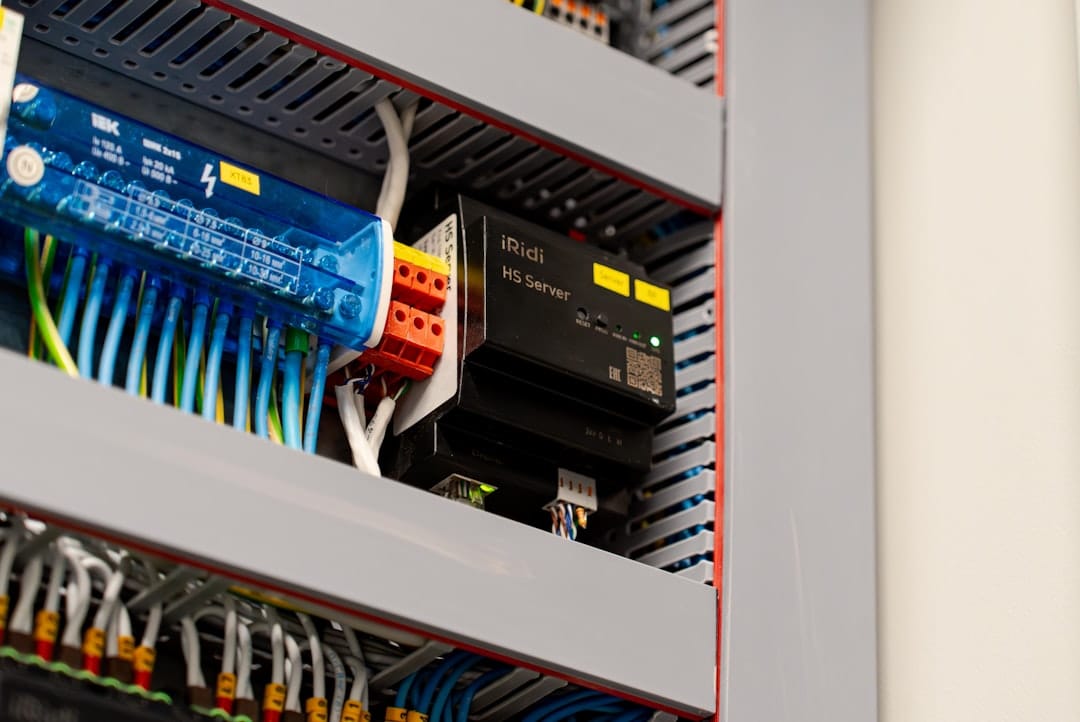
WireGuard is a modern, lean, and incredibly fast VPN protocol that uses state-of-the-art cryptography. It’s simpler than OpenVPN or IPSec, with a codebase small enough to be audited, which translates to better security and significantly lower overhead. When you self-host it, you run your own VPN server on hardware you control, like an Intel N100 mini-PC or a Raspberry Pi 5, inside your home network.
The advantages over commercial VPN services are substantial. Commercial VPNs are designed to route your internet traffic out through their servers, often to mask your location or activity. A self-hosted WireGuard server does the opposite: it’s a secure key back into your home network. This allows you to:
- Securely access self-hosted services like Home Assistant, Proxmox, or a NAS web UI (e.g., TrueNAS Scale) as if you were on your local network.
- Remotely manage servers via SSH or RDP without exposing those ports directly to the internet.
- Use your home ad-blocker (like Pi-hole or AdGuard Home) and local DNS while on the go.
- Transfer files securely to/from your home server without relying on third-party sync services.
You maintain full control over the logs, the data, the users (or "peers"), and the entire system. There’s no monthly fee, no bandwidth caps, and no concern about a VPN provider’s privacy policies.
Prerequisites

Before diving in, ensure you have the following ready. This is an intermediate guide, so comfort with basic command-line navigation is assumed.
- A Home Server: Any always-on Linux machine. This guide is optimized for low-power hardware like an Intel N100-based mini-PC (e.g., Beelink EQ12, Topton N100 board) or a Raspberry Pi 5.
- Docker & Docker Compose: These should be installed and functional. Most modern server OSes like Ubuntu Server 24.04 LTS or Debian 12 include them in their repositories.
- A Public IP Address & Port Forwarding: Your home internet needs a public IP address (most do, but some ISPs use CGNAT—check if your router's WAN IP matches what you see on a site like
icanhazip.com). You must be able to forward a UDP port (the default is 51820) from your router to your server's local IP address. - A Domain Name (Optional, but Recommended): While you can connect using your dynamic public IP, a domain name (even a free DuckDNS subdomain) allows you to use Dynamic DNS (DDNS) to handle IP changes and is required for easy QR code setup with mobile clients.
Docker Compose Installation

We'll use wg-easy, a fantastic Docker image that wraps the powerful WireGuard protocol in an accessible, web-based UI for managing peers. It eliminates the need to manually edit config files on the server.
-
Create a dedicated directory: This keeps everything organized.
mkdir ~/wireguard && cd ~/wireguard -
Create the
docker-compose.ymlfile: Usenanoorvimto create and edit the file.nano docker-compose.yml -
Paste the following configuration. This is a complete, working setup. Remember to change the
WEB_USERNAMEandWEB_PASSWORDto something secure.version: '3.8' services: wg-easy: image: weejewel/wg-easy:latest container_name: wg-easy hostname: wg-easy environment: # Server - WG_HOST=your.domain.com # or your public IP if no domain - PASSWORD=YourStrongWebUIPassword - WG_PORT=51820 - WG_DEFAULT_ADDRESS=10.8.0.x - WG_DEFAULT_DNS=1.1.1.1 - WG_ALLOWED_IPS=192.168.1.0/24, 10.8.0.0/24 - WG_PERSISTENT_KEEPALIVE=25 # Web UI - WEB_USERNAME=admin - WEB_PASSWORD=YourStrongWebUIPassword - WEB_PORT=51821 ports: - "51820:51820/udp" - "51821:51821/tcp" volumes: - ./data:/etc/wireguard restart: unless-stopped cap_add: - NET_ADMIN - SYS_MODULE sysctls: - net.ipv4.ip_forward=1 - net.ipv4.conf.all.src_valid_mark=1 - net.ipv6.conf.all.disable_ipv6=0Configuration Breakdown:
WG_HOST: The public address clients will connect to. This is the most critical setting. Use your domain name or public IP.PASSWORD/WEB_PASSWORD: Password for the Web UI. Setting both to the same value is fine.WG_DEFAULT_ADDRESS: The IP range for VPN clients.10.8.0.xmeans clients get10.8.0.2,10.8.0.3, etc.WG_DEFAULT_DNS: DNS server for connected clients. Use your local Pi-hole IP (e.g.,192.168.1.10) if you have one.WG_ALLOWED_IPS: Defines the "split tunnel." Here, clients can route to your home network (192.168.1.0/24) and other VPN clients (10.8.0.0/24), but not their general internet traffic.WG_PERSISTENT_KEEPALIVE: Helps maintain connection from behind restrictive firewalls (like mobile networks).cap_add&sysctls: Grants the container necessary permissions to manage network interfaces and routing.
-
Start the container:
docker compose up -dWait a moment, then check it's running:
docker compose logs -f wg-easy.
Initial Configuration
With the container running, the initial setup is done via the Web UI.
- Access the Web UI: Navigate to
http://your-server-local-ip:51821(e.g.,http://192.168.1.100:51821). Log in with theWEB_USERNAMEandWEB_PASSWORDyou set. - Configure Your Router (Port Forwarding): This is a hardware-specific step. Log into your router's admin panel (often
192.168.1.1) and create a port forwarding rule:- Protocol: UDP
- External Port: 51820
- Internal IP: Your server's local IP (e.g.,
192.168.1.100) - Internal Port: 51820
- Create Your First Peer (Device): In the wg-easy UI, click "Add new peer." Give it a name like "Pixel-Phone" or "ThinkPad-Laptop." You can leave all other settings at their defaults. Click "Add."
- Download the Configuration: For the new peer, you'll see options to download a
.conffile or show a QR code. The.conffile is for desktop clients (Linux, Windows, macOS). The QR code is for mobile apps (iOS, Android).
Key Features & How to Use Them
Split Tunneling (The Default & Recommended Mode)
This is configured via the WG_ALLOWED_IPS environment variable in your docker-compose.yml. With the value 192.168.1.0/24, 10.8.0.0/24, only traffic destined for your home network and other VPN clients is routed through the VPN tunnel. Your laptop's general web browsing, YouTube, etc., uses its normal internet connection. This conserves bandwidth on your home upload link and reduces latency.
Full Tunnel (Forcing All Traffic)
If you want a device to route all its internet traffic through your home (e.g., to use your home Pi-hole on public WiFi, or for security on untrusted networks), edit a peer in the wg-easy UI. Change its "Allowed IPs" to 0.0.0.0/0, ::/0. This will force all IPv4 and IPv6 traffic through the VPN.
Kill Switch (On Clients)
A kill switch prevents data leaks if the VPN tunnel drops. This is configured on the client, not the server. In the official WireGuard apps:
- Desktop (Windows/macOS/Linux): In the client GUI, you can usually find a "Block traffic without VPN" or "Kill Switch" checkbox in the peer's settings.
- Mobile (iOS/Android): The official apps have a "Block connections without VPN" or "On-demand" setting that functions as a kill switch. Enable this for maximum security on the go.
Dynamic DNS (DDNS) Integration
If your public IP changes (dynamic IP), you must update WG_HOST. Automate this! If you use a domain with a DDNS service (like DuckDNS, No-IP, or your registrar's built-in service), run a DDNS client on your server or router. Then, in your docker-compose.yml, set WG_HOST to your domain name (e.g., myhome.duckdns.org). The WireGuard clients will always connect to the right address.
Performance on Low-Power Hardware
WireGuard is famously efficient, making it ideal for low-power hardware. Its cryptographic operations are streamlined in the Linux kernel, minimizing CPU overhead.
| Hardware | CPU | Idle RAM Usage (wg-easy) | Active VPN RAM (1-2 peers) | Expected Throughput (Gigabit LAN) | Notes |
|---|---|---|---|---|---|
| Raspberry Pi 5 | Broadcom BCM2712 (4x Cortex-A76 @ 2.4GHz) | ~45 MB | ~55 MB | 700-900 Mbps | Network-limited by shared USB bus. More than capable for remote access and multi-stream 4K. |
| Intel N100 Mini-PC | Intel Alder Lake-N (4 E-cores @ 3.4GHz) with AES-NI & QuickAssist | ~40 MB | ~50 MB | 950+ Mbps (saturates Gigabit) | Hardware-accelerated crypto. Negligible CPU load (<5%) even at full throughput. The sweet spot. |
| Raspberry Pi 4 (2GB) | Broadcom BCM2711 (4x Cortex-A72 @ 1.5GHz) | ~40 MB | ~50 MB | 300-450 Mbps | Perfectly sufficient for typical remote access (SSH, web UIs, media streaming). |
Real-World Usage: On an Intel N100, running wg-easy alongside 10 other containers (Pi-hole, Home Assistant, etc.), the total system RAM usage typically stays under 2.5GB. The WireGuard process itself is barely a blip in htop. The throughput is more than enough to stream high-bitrate media from Jellyfin or transfer large backups remotely.
Tips & Best Practices
- Use Strong, Unique Peer Names: "iPhone-14-John" is better than "peer1." It makes management easier as your number of devices grows.
- Set Up a Mobile Client First: Use the QR code from the wg-easy UI to set up your phone. Test the connection on cellular data (with WiFi off) before leaving home. This validates your port forwarding and
WG_HOSTsetting. - Leverage Local DNS: Point
WG_DEFAULT_DNSto your internal Pi-hole/AdGuard Home or router (e.g.,192.168.1.1). This lets you use local hostnames (nas.local,homeassistant.local) from your VPN-connected devices. - Backup the
./dataDirectory: Yourdocker-compose.ymlis the blueprint, but the./datavolume holds all private keys and peer configurations. Back it up securely. To migrate, copy this directory and your compose file to a new server, rundocker compose up -d, and you're done. - Update Securely: To update the
wg-easyimage, navigate to your~/wireguarddirectory and run:docker compose pull docker compose down docker compose up -d - Limit Web UI Exposure: The Web UI (port
51821) is only meant for local management. Do not expose it to the internet. If you need remote management, first connect via the WireGuard VPN itself, then access the UI.
Troubleshooting
| Symptom | Likely Cause | Solution |
|---|---|---|
| "Handshake did not complete" errors. | Port 51820/UDP not forwarded correctly, or firewall on server is blocking. | Double-check router port forwarding. Check server firewall: sudo ufw status (if using UFW). Temporarily disable to test: sudo ufw disable (re-enable later!). |
| Can ping server, but not other LAN devices. | WG_ALLOWED_IPS doesn't include your LAN subnet, or server IP forwarding is off. | Ensure your LAN subnet (e.g., 192.168.1.0/24) is in WG_ALLOWED_IPS. Verify IP forwarding on the host: sysctl net.ipv4.ip_forward should return 1. |
| Connection drops after 2-3 minutes on mobile. | NAT/firewall timeouts on cellular or public WiFi. | Ensure WG_PERSISTENT_KEEPALIVE=25 is set in your docker-compose.yml. Restart the container after adding it. |
| Web UI is inaccessible. | Another service is using port 51821, or the container failed to start. | Check for port conflicts: `sudo ss -tulpn |
| "Configuration file is invalid" on client import. | The WG_HOST in the server config is incorrect or the .conf file is corrupt. | Manually open the .conf file in a text editor. The Endpoint line should match your public IP/domain and port (e.g., your.domain.com:51820). |
General Debugging Flow:
- Check container logs:
docker compose logs wg-easy. - Check the peer is connected in the wg-easy UI (it shows latest handshake time).
- From a connected client, try to ping the VPN server's internal IP (
10.8.0.1), then try to ping your server's LAN IP (192.168.1.100), then another LAN device.
Conclusion
Self-hosting a WireGuard VPN with wg-easy strikes a perfect balance between power and simplicity. You gain a enterprise-grade, secure tunnel into your home network without the complexity of traditional VPN setups. For owners of low-power hardware like the Intel N100 or Raspberry Pi 5, it's a virtually zero-overhead addition that unlocks true remote access to all your self-hosted services.
The combination of Docker, a clean Web UI, and WireGuard's robust protocol means you spend less time configuring and more time reliably accessing your homelab from anywhere. Take the weekend to set it up, and you'll soon wonder how you ever managed without this secure, private link back to your own digital home.
You may also like

Use Cases
WireGuard VPN Home Server: Complete Setup Guide (2026)
Access your home server from anywhere with WireGuard. Docker Compose setup with wg-easy, mobile client config, split tunneling, and Pi-hole ad blocking on the go.
networkingremote-accessvpn

Optimization
Tailscale VPN for Home Servers: Zero-Config Remote Access (2026)
Access your home server from anywhere with Tailscale. Zero-config WireGuard VPN setup, subnet routing, exit nodes, MagicDNS, and Docker integration — no port forwarding required.
networkingremote-accessself-hosted
Use Cases
Secure Remote Access: Tailscale vs. WireGuard vs. Cloudflare Tunnels (2026)
Compare Tailscale, WireGuard, and Cloudflare Tunnels for secure home server access, including setup steps, security differences, and best-fit use cases.
cloudflareremote-accesstailscale
Related Tools
Ready to set up your server?
Check out our build guides to get started with hardware.
View Build Guides