
← Back to Use Cases
Smart Security Upgrade: Self-Hosting Frigate NVR with Local AI Detection
Step-by-step guide to setting up Frigate NVR with local AI object detection. Intel N100 optimization, OpenVINO setup, and Home Assistant integration.
Published Dec 28, 2025Updated Jan 1, 2026
frigatehome-assistantnvropenvino
Smart Security Upgrade: Self-Hosting Frigate NVR with Local AI Detection
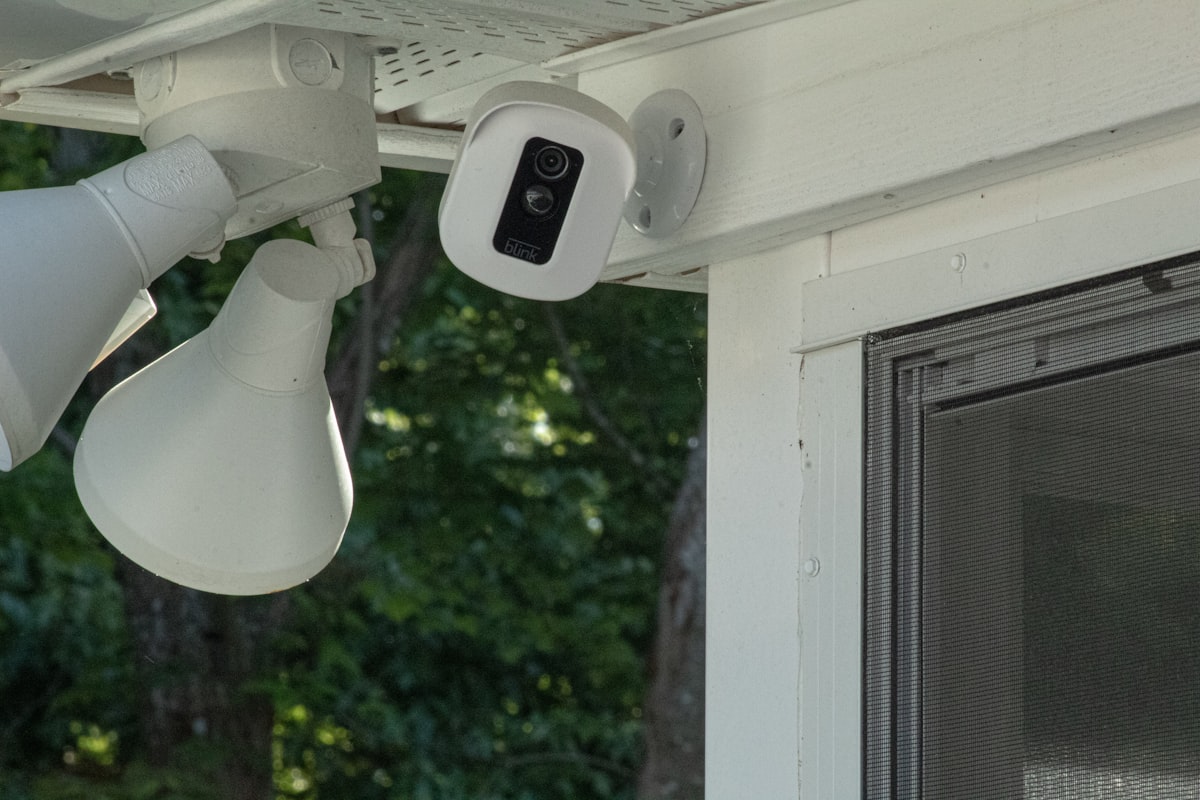
Tired of paying monthly fees for cloud-based security cameras that send your footage to who-knows-where? Want intelligent notifications that distinguish between a person at your door and a cat crossing your driveway? Welcome to Frigate NVR—a complete, local Network Video Recorder with real-time AI object detection designed specifically for home servers and Home Assistant integration.
Why Frigate NVR?
Traditional security camera systems have two major problems:
- Cloud Dependency: Most "smart" cameras require monthly subscriptions and send your private footage to remote servers for AI processing.
- Dumb Motion Detection: Basic motion alerts trigger on everything—wind, rain, shadows, animals—flooding you with useless notifications.
Frigate solves both problems by running 100% locally on your home server. It uses machine learning models to identify specific objects (people, cars, packages, pets) rather than just detecting motion. No subscription fees. No cloud. No privacy concerns.
Key Benefits
- True AI Detection: Identifies people, vehicles, packages, pets, and even delivery logos
- Zone-Based Alerts: Only notify when a person enters your driveway, not when a car passes on the street
- 24/7 Recording: Continuous recording with smart event detection
- Home Assistant Integration: Native integration with automations and dashboards
- Privacy First: All processing happens locally—your footage never leaves your network
- Cost Effective: One-time hardware investment vs. perpetual cloud subscriptions
Hardware Requirements

Frigate is designed to run efficiently on low-power hardware, making it perfect for Intel N100-based home servers. Here's what you'll need:
Minimum Requirements
| Component | Specification |
|---|---|
| CPU | Intel N100 or equivalent (6th Gen Intel or newer for OpenVINO) |
| RAM | 4 GB minimum, 8 GB recommended |
| Storage | 128 GB SSD for OS + recording storage based on retention needs |
| Network | Gigabit Ethernet (dedicated NIC for cameras recommended) |
Recommended Setup for 4-8 Cameras
| Component | Specification | Approx. Cost |
|---|---|---|
| Mini PC | Beelink EQ13 (Intel N100, 16GB RAM, 500GB SSD) | $180-220 |
| Storage | 2TB NVMe for recordings | $80-120 |
| Network | Dual NIC (built into EQ13) or USB 2.5GbE adapter | $0-25 |
| AI Accelerator | Optional (see below) | $0-60 |
AI Accelerator Options
Frigate supports multiple detection backends. Here's how they compare:
| Detector | Power Usage | Inference Time | Cost | Best For |
|---|---|---|---|---|
| OpenVINO (iGPU) | Low | 12-15ms | Free | Intel N100/N305 builds |
| Coral USB TPU | Very Low | 10ms | $60 | Maximum efficiency |
| CPU Only | High | 200-300ms | Free | Testing only |
2025 Recommendation: For new Intel N100 builds, OpenVINO with the integrated GPU is now the preferred choice. Users report excellent performance (12-15ms inference) with lower power consumption than Coral TPUs, and no additional hardware cost.
Note: The Google Coral TPU is no longer actively recommended for new installations, though Frigate continues to support it. OpenVINO provides comparable performance on modern Intel platforms without the supply chain issues that have plagued Coral availability.
Prerequisites
Before starting, ensure you have:
- Docker and Docker Compose installed on your server
- IP cameras with RTSP stream support (Reolink, Amcrest, Dahua, Hikvision, etc.)
- MQTT broker (Mosquitto) for Home Assistant integration
- Camera substream access configured (critical for performance)
Camera Stream Configuration
This is crucial for efficient operation. Most IP cameras provide two streams:
- Main Stream: High resolution (1080p, 2K, 4K) for recording
- Sub Stream: Low resolution (640x480, 720p) for detection
Always use the substream for AI detection. Running detection on 4K streams will overwhelm your CPU and provide no benefit—the AI models only need low resolution to identify objects.
Installation Guide
Step 1: Create Directory Structure
mkdir -p /opt/frigate/config
mkdir -p /opt/frigate/storage
cd /opt/frigate
Step 2: Create Docker Compose File
Create docker-compose.yml:
version: "3.9"
services:
  frigate:
    container_name: frigate
    image: ghcr.io/blakeblackshear/frigate:stable
    restart: unless-stopped
    privileged: true
    shm_size: "256mb"
    devices:
      - /dev/dri/renderD128  # Intel iGPU for OpenVINO
    volumes:
      - /etc/localtime:/etc/localtime:ro
      - ./config:/config
      - ./storage:/media/frigate
      - type: tmpfs
        target: /tmp/cache
        tmpfs:
          size: 1000000000  # 1GB RAM cache
    ports:
      - "5000:5000"   # Web UI
      - "8554:8554"   # RTSP restream
      - "8555:8555/tcp"  # WebRTC
      - "8555:8555/udp"
    environment:
      - FRIGATE_RTSP_PASSWORD=your_password_here
Step 3: Create Frigate Configuration
Create config/config.yml:
mqtt:
  enabled: true
  host: 192.168.1.100  # Your MQTT broker IP
  port: 1883
  user: frigate
  password: your_mqtt_password

detectors:
  ov:
    type: openvino
    device: GPU
    model:
      path: /openvino-model/ssdlite_mobilenet_v2.xml

model:
  width: 300
  height: 300
  input_tensor: nhwc
  input_pixel_format: bgr
  labelmap_path: /openvino-model/coco_91cl_bkgr.txt

ffmpeg:
  hwaccel_args: preset-vaapi  # Intel Quick Sync hardware acceleration

record:
  enabled: true
  retain:
    days: 7
    mode: motion
  events:
    retain:
      default: 14
      mode: active_objects

snapshots:
  enabled: true
  retain:
    default: 14

objects:
  track:
    - person
    - car
    - dog
    - cat
    - package

cameras:
  front_door:
    enabled: true
    ffmpeg:
      inputs:
        - path: rtsp://user:pass@192.168.1.50:554/cam/realmonitor?channel=1&subtype=1
          roles:
            - detect
        - path: rtsp://user:pass@192.168.1.50:554/cam/realmonitor?channel=1&subtype=0
          roles:
            - record
    detect:
      width: 640
      height: 480
      fps: 5
    zones:
      front_porch:
        coordinates: 320,480,640,480,640,300,320,300
        objects:
          - person
          - package
    objects:
      filters:
        person:
          min_score: 0.6
          threshold: 0.7
Step 4: Start Frigate
docker compose up -d
Access the web UI at http://your-server-ip:5000.
Step 5: Verify Detection is Working
In the Frigate web UI:
- Navigate to the System page
- Check that the OpenVINO detector shows as active
- Verify inference times are 10-20ms (not 200ms+)
- Check camera feeds are loading correctly
Optimizing Detection Zones
Zones are what make Frigate truly intelligent. Instead of alerting on every person detected anywhere in frame, you can define specific areas that matter.
Zone Strategy Examples
Scenario: Front yard camera covering driveway and sidewalk
zones:
  driveway:
    coordinates: 0,480,300,480,300,200,0,200
    objects:
      - person
      - car
  front_door:
    coordinates: 500,480,640,480,640,300,500,300
    objects:
      - person
      - package
With this configuration:
- People on the public sidewalk: No alert
- Person entering your driveway: Alert
- Person at your front door: Alert with higher priority
- Package delivered: Alert
Drawing Zones
The easiest way to create zones:
- Open the Frigate web UI
- Click on a camera
- Use the Mask & Zone editor tool
- Draw polygons by clicking points
- Copy the coordinates to your config
Home Assistant Integration
Frigate's true power emerges when integrated with Home Assistant.
Step 1: Install the Integration
- Install HACS (Home Assistant Community Store) if not already installed
- In HACS, search for "Frigate" and install the integration
- Restart Home Assistant
- Go to Settings > Devices & Services > Add Integration
- Search for "Frigate" and configure with your Frigate server URL
Step 2: Entities Created
For each camera, Frigate creates:
| Entity | Purpose |
|---|---|
camera.front_door | Live stream |
camera.front_door_person | Last person snapshot |
binary_sensor.front_door_person_motion | Person detected (on/off) |
sensor.front_door_person_count | Number of people detected |
switch.front_door_detect | Enable/disable detection |
switch.front_door_recordings | Enable/disable recording |
Step 3: Example Automations
Alert when person detected at front door:
automation:
  - alias: "Front Door Person Alert"
    trigger:
      - platform: state
        entity_id: binary_sensor.front_door_person_motion
        to: "on"
    condition:
      - condition: zone
        entity_id: binary_sensor.front_door_front_porch_person_occupancy
        zone: zone.home
    action:
      - service: notify.mobile_app
        data:
          title: "Person at Front Door"
          message: "Someone is at the front door"
          data:
            image: /api/frigate/notifications/front_door/person/snapshot.jpg
            actions:
              - action: "view_live"
                title: "View Live"
Turn on porch light when person detected at night:
automation:
  - alias: "Porch Light on Person Detection"
    trigger:
      - platform: state
        entity_id: binary_sensor.front_door_person_motion
        to: "on"
    condition:
      - condition: sun
        after: sunset
        before: sunrise
    action:
      - service: light.turn_on
        target:
          entity_id: light.front_porch
      - delay: "00:05:00"
      - service: light.turn_off
        target:
          entity_id: light.front_porch
Performance Tuning
Substream Optimization
The single most important optimization: always use substreams for detection.
| Stream Type | Resolution | Detection FPS | CPU Usage |
|---|---|---|---|
| Main (4K) | 3840x2160 | 2-3 fps | 80-100% |
| Sub (480p) | 640x480 | 5-10 fps | 15-25% |
Memory Settings
For systems with 8GB+ RAM, increase the tmpfs cache:
tmpfs:
  size: 2000000000  # 2GB for smoother playback
Detection FPS
Match detection FPS to your needs:
- 5 fps: Standard (recommended default)
- 10 fps: High traffic areas
- 2-3 fps: Low activity areas (saves CPU)
Intel N100 Typical Performance
With an Intel N100 running OpenVINO and 6 cameras:
| Metric | Value |
|---|---|
| Detector inference | 12-15ms |
| Detector CPU usage | <12% |
| Total CPU usage | 25-30% |
| Idle power | ~8-10W |
| Power with activity | ~12-15W |
Coral TPU vs OpenVINO (2025)
If you're choosing between a Coral TPU and OpenVINO:
Choose OpenVINO When:
- You have an Intel N100, N305, or newer Intel CPU
- You want zero additional hardware cost
- Power efficiency is already good enough
- Coral TPUs are out of stock (common issue)
Choose Coral TPU When:
- Using older/weaker CPU without capable iGPU
- Running 10+ cameras with maximum efficiency needs
- You already own a Coral device
- Running on Raspberry Pi or ARM devices
Performance Comparison
| Metric | Coral USB | OpenVINO (N100 iGPU) |
|---|---|---|
| Inference time | ~10ms | 12-15ms |
| Power usage | Very low | Low |
| Additional cost | $60 | $0 |
| Availability | Limited | Always available |
| Setup complexity | Moderate | Easy |
Troubleshooting
Common Issues and Solutions
High CPU Usage (>50%)
- Ensure you're using substreams for detection, not main streams
- Verify OpenVINO is using GPU device, not CPU
- Reduce detection FPS if needed
"No Detections" Despite Motion
- Check detector is running: System page should show inference times
- Verify object is in tracked list (
objects.track) - Lower
min_scorethreshold temporarily to debug - Ensure camera resolution matches model input (300x300 scaled from substream)
Poor Detection Quality
- Increase
min_scoreto reduce false positives - Ensure adequate lighting
- Check camera is providing clear substream
RTSP Connection Failures
- Verify camera RTSP URL in VLC first
- Check firewall allows traffic from Docker container
- Ensure camera is on same network or properly routed
OpenVINO Not Using GPU
- Verify
/dev/dri/renderD128is passed to container - Check Intel iGPU drivers are installed on host
- Review Frigate logs for OpenVINO initialization
Storage Calculations
Plan your storage based on camera count and retention:
| Cameras | Quality | 7-Day Retention | 14-Day Retention |
|---|---|---|---|
| 4 | 1080p | ~200 GB | ~400 GB |
| 6 | 1080p | ~300 GB | ~600 GB |
| 8 | 1080p | ~400 GB | ~800 GB |
| 4 | 4K | ~600 GB | ~1.2 TB |
Pro tip: Store recordings on a separate drive from your OS to maintain system responsiveness and allow easy expansion.
Cost Comparison: Frigate vs Cloud Services
| Service | Monthly Cost | 4 Cameras/Year | Privacy |
|---|---|---|---|
| Ring Protect Plus | $20/mo | $240/year | Cloud |
| Nest Aware Plus | $12/mo | $144/year | Cloud |
| Arlo Secure | $18/mo | $216/year | Cloud |
| Frigate (self-hosted) | $0/mo | $0/year | Local |
Initial Frigate Investment: ~$200-300 (mini PC) + cameras Break-even: 1-2 years vs. cloud subscriptions Long-term savings: $150-250/year in perpetuity
Conclusion
Frigate NVR transforms your home security from a cloud-dependent subscription service into a powerful, private, local system. With Intel N100-based hardware running OpenVINO, you can monitor multiple cameras with intelligent AI detection at a fraction of the power and cost of traditional solutions.
The key takeaways:
- Use substreams for detection—this is non-negotiable for good performance
- OpenVINO on Intel N100 provides excellent detection without extra hardware
- Zone configuration is what makes Frigate truly smart
- Home Assistant integration unlocks powerful automations
- Local processing means no subscriptions and complete privacy
Whether you're upgrading from dumb motion cameras or ditching cloud subscriptions, Frigate is the gold standard for self-hosted NVR in 2025.
Resources
You may also like

Use Cases
Home Assistant on Low-Power Hardware: N100 Mini PC Guide (2026)
Best hardware for Home Assistant in 2026. Run HA on an Intel N100 mini PC at 8-12W idle. Covers HA OS bare metal, Proxmox LXC, and Docker Compose installation methods.
home-assistanthome-automationlow-power

Builds
N100 Home Server Docker Stack: Run 10 Services Under 15W (2026)
Complete docker-compose.yml to run Jellyfin, Nextcloud, Home Assistant, Pi-hole, Vaultwarden, Immich, Homepage, Uptime Kuma, Tailscale, and Portainer on an Intel N100 mini PC under 15W.
docker-composehome-assistantlow-power
Use Cases
Nextcloud Self-Hosted Setup Guide 2026: Docker Compose on an N100 Mini PC
Complete Nextcloud setup guide with Docker Compose for 2026. Replace Google Drive with a self-hosted cloud on an Intel N100 mini PC. Includes Redis caching, MariaDB, and remote access via Tailscale.
cloud-storagedocker-composegoogle-drive-alternative
Related Tools
Ready to set up your server?
Check out our build guides to get started with hardware.
View Build Guides