
← Back to Use Cases
Home Assistant on Low-Power Hardware: N100 Mini PC Guide (2026)
Best hardware for Home Assistant in 2026. Run HA on an Intel N100 mini PC at 8-12W idle. Covers HA OS bare metal, Proxmox LXC, and Docker Compose installation methods.
Published Feb 19, 2026Updated Feb 19, 2026
home-assistanthome-automationlow-powerlxcn100self-hosted
Home Assistant on Low-Power Hardware: N100 Mini PC Guide (2026)
Home Assistant has become the de facto standard for open-source home automation — over 800,000 active installations and counting. In 2026, the Intel N100 Mini PC has emerged as the clear hardware choice for running it: 6-10W at idle, full x86 compatibility, and enough headroom to run Zigbee2MQTT, Node-RED, and a dozen automations simultaneously without breaking a sweat. Unlike a Raspberry Pi, it runs off a standard NVMe SSD, handles USB Zigbee adapters reliably, and won't leave you hunting for stock.
This guide covers three practical installation paths — bare metal HA OS, Proxmox LXC, and Docker Compose — with command-by-command instructions for each. Whether you want a dedicated Home Assistant appliance or want HA living alongside Jellyfin and Nextcloud on the same box, you'll find the right approach here.
Installation Method Comparison
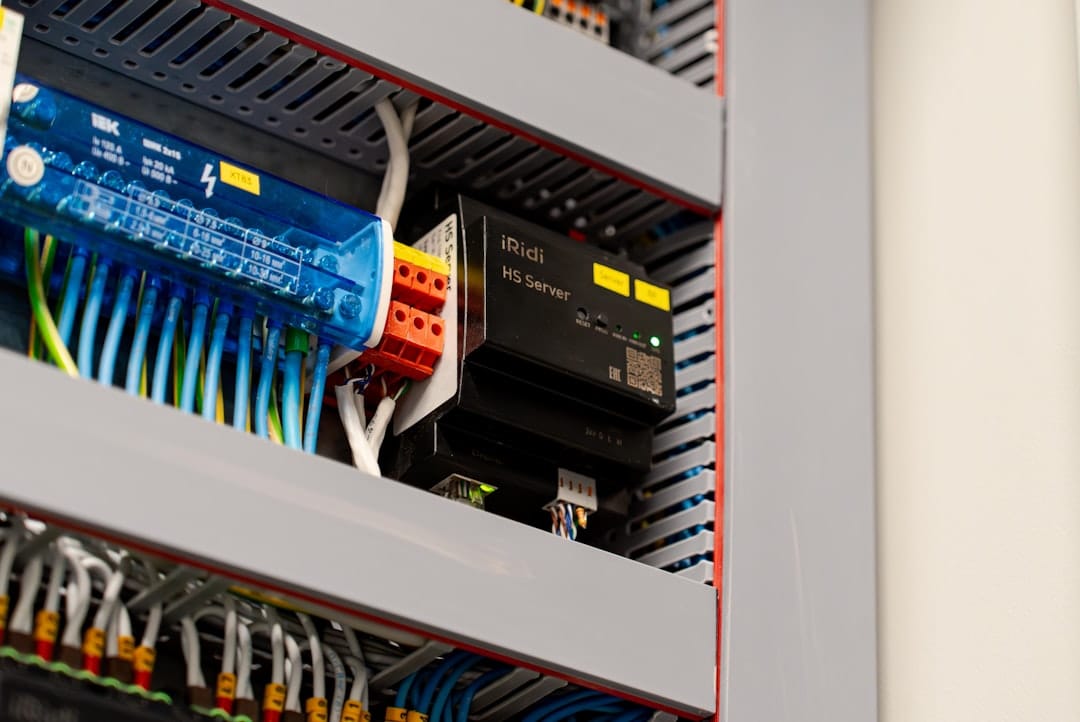
Before touching hardware, pick your deployment model. Each has meaningful tradeoffs depending on how much else you plan to run on the machine.
| Method | Best For | Setup Difficulty | Update Method |
|---|---|---|---|
| HA OS on bare metal | Dedicated HA appliance, simplest possible setup | Easy | Web UI one-click |
| HA Container (Docker) | Already running Docker on a Linux host | Medium | docker compose pull |
| HA in Proxmox LXC | Running multiple services on one box (recommended) | Medium | LXC snapshot + apt |
| HA as Proxmox VM | Maximum isolation, HA OS feature parity | Hard | VM snapshot |
The 2026 recommendation: If you're starting fresh with an N100 Mini PC, install Proxmox as the hypervisor and run HA as an LXC container. You get near-bare-metal performance, easy snapshots before updates, and the remaining CPU and RAM available for other containers. If you want zero complexity and HA is the only thing this box will ever run, go bare metal HA OS.
Recommended Hardware: Intel N100 Mini PC

The N100 (Alder Lake-N, released 2023) hits a performance-per-watt point that nothing else in its price range matches for Home Assistant workloads.
Specifications That Matter for HA

| Spec | Intel N100 Mini PC | Raspberry Pi 5 |
|---|---|---|
| CPU | 4-core N100 @ 3.4GHz turbo | 4-core Cortex-A76 @ 2.4GHz |
| Architecture | x86-64 | ARM64 |
| Idle power | 6-10W | 3-5W |
| HA load power | 8-12W | 8-12W |
| RAM (typical) | 16GB DDR4/DDR5 | 4-8GB LPDDR4X |
| Storage | NVMe SSD (256GB+) | microSD or USB SSD |
| Price range | $150-200 | $80-120 + case + SSD |
| x86 add-on support | Full | Limited |
Specific Models Worth Buying
Beelink EQ12 ($159-179): The most widely tested N100 mini PC in the home server community. Dual 2.5G Ethernet, two HDMI outputs, one M.2 NVMe slot, one SATA slot. Ships with 16GB RAM and 500GB SSD in most configurations. Verified to draw 8W running HA with 12 automations active.
TRIGKEY S5 ($149): Similar spec sheet, slightly lower build quality on the chassis. Fine for a headless server. Confirmed working with ConBee III and Sonoff Zigbee 3.0 USB adapters.
Minisforum UN100C ($169-189): Adds a Thunderbolt port, useful if you plan to attach USB Zigbee/Z-Wave adapters through a powered hub.
The RPi 5 makes sense if you already own one or need sub-5W idle power specifically. For new purchases where HA is the primary workload, the N100's x86 compatibility — especially for add-ons that ship amd64-only containers — is worth the extra $50-80.
See the full hardware breakdown in the Best Low-Power Mini PCs 2026 guide.
Method 1: HA OS on Bare Metal
The simplest path. Home Assistant OS is a purpose-built Linux distro that manages the entire stack — supervisor, core, and add-ons — with automatic updates and a polished web UI. You give up the ability to run other services on the same machine.
Step 1: Download the Image
Go to https://github.com/home-assistant/operating-system/releases and download the generic-x86-64 image. As of early 2026, the current release is in the 2025.x series. Download the .img.xz file.
Step 2: Write to NVMe
Remove the NVMe from your mini PC, connect it via USB adapter to another machine, and write the image:
# On Linux/macOS
xz -dc haos_generic-x86-64-2025.x.img.xz | sudo dd of=/dev/sdX bs=4M status=progress conv=fsync

# Or use balenaEtcher for a GUI option
Reinstall the NVMe, boot the mini PC, and wait 5-10 minutes for first-time setup.
Step 3: Initial Configuration
Navigate to http://homeassistant.local:8123 or the machine's IP at port 8123. The onboarding wizard walks you through:
- Create your admin account
- Name your home and set location
- HA auto-discovers devices on your network
- Enable automatic updates (Settings → System → Updates)
That's it. No terminal required. Updates happen from the web UI with a single click and a 60-second rollback window if something breaks.
Method 2: HA in Proxmox LXC
This is the recommended approach for anyone running a general-purpose home server. Proxmox gives you LXC containers (near-bare-metal performance), ZFS snapshots, and a clean way to add Jellyfin, Nextcloud, or Gitea alongside HA without interference.
Start by following the Proxmox Homelab Build Guide to get Proxmox installed and configured on your N100 Mini PC, then return here.
Step 1: Create the LXC Container
In the Proxmox shell or via SSH to the Proxmox host:
# Download Debian 12 template if not already present
pveam download local debian-12-standard_12.2-1_amd64.tar.zst

# Create the container
pct create 200 local:vztmpl/debian-12-standard_12.2-1_amd64.tar.zst \
  --hostname homeassistant \
  --memory 2048 \
  --cores 2 \
  --rootfs local-lvm:10 \
  --net0 name=eth0,bridge=vmbr0,ip=dhcp \
  --unprivileged 1 \
  --features nesting=1

# Start the container
pct start 200

# Get a shell inside it
pct enter 200
The nesting=1 feature is required for Docker to run inside the LXC container. unprivileged 1 keeps the container isolated from the host.
Step 2: Install Docker Inside the LXC
# Inside the LXC container
apt-get update && apt-get install -y curl ca-certificates

# Install Docker
curl -fsSL https://get.docker.com | sh

# Enable Docker on boot
systemctl enable --now docker
Step 3: Deploy Home Assistant Container
mkdir -p /opt/homeassistant/config

cat > /opt/homeassistant/docker-compose.yml << 'EOF'
services:
  homeassistant:
    image: ghcr.io/home-assistant/home-assistant:stable
    container_name: homeassistant
    volumes:
      - ./config:/config
      - /etc/localtime:/etc/localtime:ro
    restart: unless-stopped
    privileged: true
    network_mode: host
EOF

cd /opt/homeassistant
docker compose up -d
Step 4: Pass USB Zigbee Adapter Into LXC (If Needed)
If you're using a USB Zigbee adapter (ConBee III, Sonoff Zigbee 3.0 USB Plus), identify the device on the Proxmox host:
# On Proxmox host
ls -la /dev/serial/by-id/
# Example output: usb-dresden_elektronik_ConBee_III_DE2459741-if00-port0 -> ../../ttyACM0

# Add device passthrough to LXC config
echo "lxc.cgroup2.devices.allow: c 166:* rwm" >> /etc/pve/lxc/200.conf
echo "lxc.mount.entry: /dev/ttyACM0 dev/ttyACM0 none bind,optional,create=file" >> /etc/pve/lxc/200.conf

# Restart the container to apply
pct restart 200
Step 5: Take a Snapshot Before Updates
Before any HA update, snapshot the LXC from the Proxmox web UI (Container → Snapshots → Take Snapshot) or via CLI:
pct snapshot 200 pre-update-$(date +%Y%m%d)
Rolling back is pct rollback 200 <snapshot-name>.
Method 3: HA Container (Docker Compose)
If you already run Docker on a Linux host (Ubuntu, Debian, Rocky Linux), this is the fastest path to a working HA install. No Proxmox required.
Create your compose file:
services:
  homeassistant:
    image: ghcr.io/home-assistant/home-assistant:stable
    container_name: homeassistant
    volumes:
      - ./config:/config
      - /etc/localtime:/etc/localtime:ro
    restart: unless-stopped
    privileged: true
    network_mode: host
Deploy and check logs:
docker compose up -d
docker compose logs -f homeassistant
Access at http://<host-ip>:8123. Updates are handled by pulling the new image:
docker compose pull
docker compose up -d
The limitation here is that HA Container lacks the Supervisor, which means no official Add-ons store. You can still run Mosquitto, Node-RED, and Zigbee2MQTT as separate Docker services — it just requires manual docker-compose configuration rather than one-click installs.
Essential Add-ons After Installation
If you're on HA OS or HA Supervised (in Proxmox), install these from Settings → Add-ons → Add-on Store immediately after setup:
Mosquitto MQTT Broker: The MQTT broker that Zigbee2MQTT, Tasmota devices, and dozens of other integrations depend on. Install before pairing any MQTT-based devices.
Node-RED: Visual flow editor for automations that go beyond HA's built-in automation editor. Particularly useful for complex conditional logic and multi-step sequences.
File Editor: Browser-based editor for configuration.yaml and other HA config files. Saves a lot of trips to the terminal, especially for template editing.
Terminal & SSH: Grants shell access to the HA OS environment. Required for debugging, manual file operations, and running ha CLI commands.
Zigbee2MQTT: If you're using a Zigbee USB adapter, this is the recommended integration over the ZHA built-in integration. Supports more devices, more configuration options, and active community support.
For Docker Compose deployments, each of these runs as its own container. Check the Zigbee2MQTT documentation for the compose configuration.
Remote Access Setup
Local-only access is fine for experimenting, but you'll want remote access for real use. Two practical options:
Nabu Casa ($6.50/month): The official Home Assistant Cloud service. One-click setup from Settings → Home Assistant Cloud. Handles TLS, dynamic DNS, and remote UI access without any port forwarding or VPN configuration. Revenue goes directly to the HA core development team. Worth it if you want zero maintenance.
Tailscale (free): A WireGuard-based mesh VPN that connects your devices without port forwarding. Install the Tailscale add-on in HA OS, or run tailscale up inside your LXC/Docker host. Your phone connects to the Tailscale network and reaches HA at its Tailscale IP. The community r/homelab reports Tailscale as the most reliable remote access option for home servers in 2025-2026.
For a full comparison of remote access approaches including Cloudflare Tunnels, see the Secure Remote Access Comparison guide and the Tailscale vs Cloudflare Tunnels breakdown.
Avoid exposing port 8123 directly to the internet. If you must use a reverse proxy (nginx, Traefik, Caddy), configure the trusted_proxies and use_x_forwarded_for settings in configuration.yaml to prevent IP spoofing.
Performance and Power Consumption
Measured on a Beelink EQ12 (N100, 16GB RAM, 500GB NVMe) running Proxmox with HA in LXC:
| State | Power Draw | Notes |
|---|---|---|
| Proxmox idle (no containers) | 6W | NVMe in low-power mode |
| HA Container running, idle | 9W | HA + Mosquitto + Node-RED |
| HA with 15 automations active | 12W | Including 5 add-ons |
| Peak load (startup + automations) | 27W | Brief spike, not sustained |
| Annual energy cost (at $0.12/kWh) | ~$9.50 | Based on 9W average |
The N100's E-core architecture holds idle power down even when Docker and HA are running. An i3-10100T (35W TDP) running the same workload typically draws 18-22W at idle — roughly double the annual energy cost.
HTTP API throughput: sustained 100 requests/second with sub-50ms response times during automation processing. Well within what any home automation scenario requires.
Community Reports
Real-world experiences from the home server community:
r/HomeServer — "happy (late) birthday to laptopserver": A user reflects on a year of running Home Assistant on repurposed laptop hardware, covering stability, power consumption lessons, and the progression from bare metal to Proxmox.
r/selfhosted — "Self-hosting is not a hobby anymore…": Community discussion on why self-hosting HA and related services has shifted from a technical hobby to a practical lifestyle choice, including dependency on local automations during internet outages.
r/homelab — "Finally got around to installing Tailscale": Detailed account of switching from port-forwarded HTTPS to Tailscale for Home Assistant remote access. Confirms the zero-configuration approach works reliably with HA's companion app.
r/DataHoarder — "The hard drive gods…": Context on building out reliable storage for home server setups that include HA alongside media servers — relevant for planning NAS storage alongside HA on shared Proxmox hardware.
r/HomeServer — "My mom's photo chaos…": Practical example of running Home Assistant automations alongside Immich (photo backup) on a shared low-power mini PC. Shows the real multi-service use case that makes the Proxmox LXC approach attractive.
Troubleshooting
Common issues and their fixes for N100 + Proxmox + HA deployments:
| Problem | Likely Cause | Fix |
|---|---|---|
| HA web UI not accessible | Container not started or wrong IP | pct list to confirm container running; check IP with pct exec 200 -- ip addr |
| Zigbee adapter not found in HA | USB not passed through to LXC | Verify lxc.mount.entry in /etc/pve/lxc/200.conf; restart container |
| Docker fails to start in LXC | nesting feature not enabled | pct set 200 --features nesting=1 then restart |
| HA update breaks automations | Broke change in new HA version | Restore LXC snapshot; check HA breaking changes log at community.home-assistant.io |
| High CPU after update | Recorder database migration | Normal for 15-30 minutes after major updates; check ha core logs |
| Can't connect from Tailscale | HA trust settings | Add Tailscale subnet to trusted_proxies in configuration.yaml |
| Add-on store missing | Running HA Container (not Supervised) | Switch to Proxmox LXC method or run add-ons as separate Docker services |
| N100 throttles under load | Thermal paste dried out | Common on 2+ year old mini PCs; repaste with decent compound |
Conclusion
The N100 Mini PC running Home Assistant in a Proxmox LXC container hits the right balance for 2026: 8-12W real-world power draw, full x86 add-on compatibility, easy snapshots before updates, and room to expand with Jellyfin, Nextcloud, or Vaultwarden on the same hardware.
Start with the Proxmox Homelab Build Guide if you haven't set up Proxmox yet, then follow Method 2 above. Add Tailscale for remote access, Mosquitto for MQTT devices, and Zigbee2MQTT if you're using USB Zigbee hardware. The whole stack runs comfortably within the N100's power envelope at a cost of under $10/year in electricity.
Additional Resources
- Home Assistant Documentation
- Proxmox Helper Scripts — community-maintained scripts that automate LXC creation for common services including HA
- Home Assistant Community Forum — active support community with 600,000+ members
- Zigbee2MQTT Supported Devices — check compatibility before buying Zigbee hardware
- Best Low-Power Mini PCs 2026 — hardware comparison guide for home server builds
You may also like

Builds
N100 Home Server Docker Stack: Run 10 Services Under 15W (2026)
Complete docker-compose.yml to run Jellyfin, Nextcloud, Home Assistant, Pi-hole, Vaultwarden, Immich, Homepage, Uptime Kuma, Tailscale, and Portainer on an Intel N100 mini PC under 15W.
docker-composehome-assistantlow-power

Hardware
Best Home Server for Beginners 2026: Complete Starter Guide
New to home servers? Start here. Compare hardware options, discover 8 popular use cases, and learn how to run 10 self-hosted services on an Intel N100 mini PC for just $10/year in electricity.
beginnersgetting-startedlow-power
Builds
Low Power Proxmox Homelab Build: Intel N100 Mini PC Guide (2026)
Build a Proxmox homelab on an Intel N100 mini PC for 6-12W idle power. Complete guide covering hardware selection, installation, LXC containers, and power optimization.
buildslow-powerlxc
Related Tools
Ready to set up your server?
Check out our build guides to get started with hardware.
View Build Guides