
← Back to Hardware Reviews
Best Home Server for Beginners 2026: Complete Starter Guide
New to home servers? Start here. Compare hardware options, discover 8 popular use cases, and learn how to run 10 self-hosted services on an Intel N100 mini PC for just $10/year in electricity.
Published Feb 19, 2026Updated Feb 19, 2026
beginnersgetting-startedlow-powern100self-hosted
Best Home Server for Beginners 2026: Complete Starter Guide
Running your own home server is one of the most practical things a tech-curious person can do in 2026. You get private cloud storage, ad-free internet, automated backups, and a self-hosted smart home — all without paying monthly subscription fees or handing your data to a third party.
This guide is for complete beginners. If you have never set up a server before, you are in the right place. By the end you will know exactly what hardware to buy, what software to run, and how to get your first service online.
What Is a Home Server?
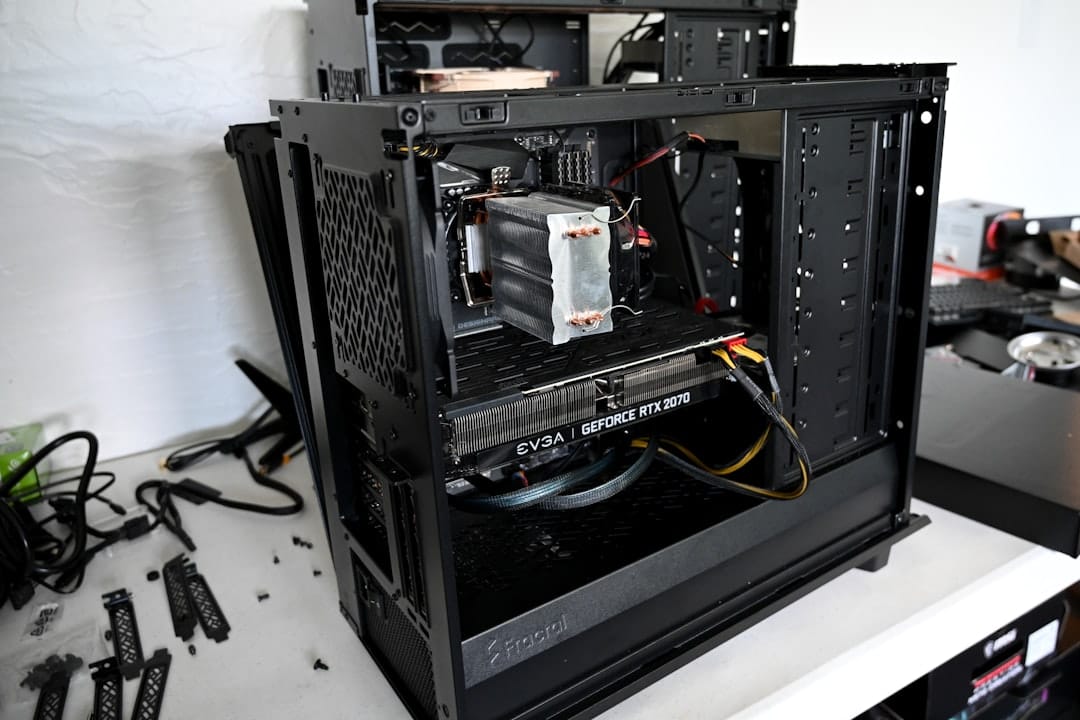
A home server is just a computer that runs 24 hours a day, 7 days a week, sitting in your home and providing services to your other devices. It is not special hardware — it can be an old laptop, a tiny mini PC, or a full tower. What makes it a server is that it runs continuously and hosts apps you and your family use.
The difference from a regular PC is simple: your server stays on and does work in the background while you sleep, watch TV, or travel. Your phone connects to it to stream a movie. Your partner's laptop backs up files to it automatically. Your smart home devices report to it instead of to Amazon's cloud.
What Can You Actually Do With a Home Server?

This is where most people get hooked. A single low-power machine can run all of these simultaneously:
Media Streaming

Replace Netflix and Plex Pass subscriptions with your own streaming server. Jellyfin, Plex, and Emby can transcode and serve movies, TV shows, and music to every screen in your house. See our full comparison: Jellyfin vs Plex vs Emby: Which Media Server Is Right for You?
Private Cloud Storage
Replace Google Drive or Dropbox with Nextcloud — full file sync, sharing, calendar, and contacts that only you control. Your files never leave your home network. Setup guide: Nextcloud Docker Compose Setup Guide 2026
Home Automation Hub
Home Assistant can connect every smart device in your home — lights, thermostats, door locks, sensors — without routing data through cloud servers in another country. Guide: Home Assistant Low Power Hardware Guide
Network-Wide Ad Blocking
Pi-hole acts as a DNS sinkhole for your entire home network, blocking ads and trackers on every device including smart TVs and phones that don't support browser extensions. Setup guide: Pi-hole Setup Guide
Self-Hosted Password Manager
Vaultwarden is a lightweight, self-hosted Bitwarden server. Your password vault stays on your hardware, not on a company's server that can be breached. Guide: Vaultwarden Docker Compose Guide
Photo Backup and Management
Immich is a self-hosted Google Photos alternative with face recognition, album organization, and automatic mobile backup. Stop paying for iCloud or Google storage. Guide: Immich Self-Hosted Photos Guide
Local AI Assistant
Run Ollama with open-source language models like Llama 3 or Mistral entirely on your own hardware. No API costs, no data sent to OpenAI. Guide: Local AI Server on N100
Server Dashboard
Keep track of all your services with a clean dashboard like Dashy or Homarr. See what is running, monitor resource usage, and launch apps from a single page. Comparison: Best Home Server Dashboards 2026
Hardware Options for Beginners: 3 Tiers
You do not need to spend a lot of money to start. Here is a realistic breakdown of what each tier gets you.
Tier 1: Use What You Already Own ($0–50)
If you have an old laptop, desktop, or even a Raspberry Pi 4 sitting in a drawer, start there. This costs nothing and teaches you the fundamentals before you invest in dedicated hardware.
An old laptop makes a surprisingly capable starter server — it has a built-in battery (acts as a UPS), a screen for setup, and the hardware already exists. The main downsides are higher power consumption than a modern mini PC and limited RAM. Full guide: How to Use a Laptop as a Home Server
Good for: Learning the basics, testing specific services, temporary setups Not ideal for: Always-on services or running multiple workloads
Tier 2: Intel N100 Mini PC — The Recommended Pick ($150–250)
This is the sweet spot for almost every beginner in 2026. Intel N100 mini PCs are purpose-built for exactly this use case: low power draw, silent operation, fanless or near-silent cooling, and enough performance to run a full homelab stack.
Key specs:
- CPU: Intel N100 (4 cores, 4 threads, up to 3.4 GHz)
- Power draw: 6–12W at idle
- RAM: Up to 16GB DDR4/DDR5 (depends on model)
- Storage: NVMe M.2 slot + often a 2.5" SATA bay
- Price: $150–200 complete units, sometimes less on sale
- Annual electricity cost: roughly $8–11/year at average US rates
For full model comparisons and recommendations, see: Best Low Power Mini PCs for Home Servers 2026
If you are unsure whether to get the N100 or the slightly more powerful N305, read our direct comparison: Intel N100 vs N305 for Home Servers 2026
Good for: Most beginner to intermediate homelab setups Not ideal for: Heavy AI inference, 4K video transcoding at scale
Tier 3: Custom Build or Repurposed Workstation ($400+)
For users who want more storage capacity, want to experiment with virtualization, or plan to run demanding workloads, a custom build with an older Xeon or AMD processor gives more headroom. These consume more power but offer more expandability.
If this is where you want to end up, the Proxmox build guide is a great starting point: Proxmox Homelab N100 Build Guide
Why the N100 Mini PC Is the Best Beginner Choice
Here is why nearly every experienced homelab builder recommends this hardware tier to people just starting out:
Low power, always-on economics. A machine running at 10W draws about 87.6 kWh per year. At the US average electricity rate of $0.12/kWh, that is roughly $10.50/year to run your entire home server. Compare that to an old desktop PC idling at 65W — that costs about $68/year. The N100 pays for its own premium over older hardware within a year.
No assembly required. You buy a complete unit. Plug in power, connect an Ethernet cable, insert a storage drive if needed, and you are ready to install an OS. There is nothing to build.
Silent operation. Many N100 units are completely fanless or have a fan that rarely spins up under typical server workloads. It can sit on a shelf in your living room without anyone noticing it is there.
Handles the full beginner stack. A single N100 with 16GB RAM can comfortably run Jellyfin, Nextcloud, Home Assistant, Pi-hole, and Vaultwarden simultaneously with CPU headroom to spare. That covers essentially every use case a new homelab user will encounter in the first year.
Easy to reinstall and experiment. Because it is dedicated hardware, you can wipe it and start fresh without affecting your main computer. This freedom to experiment is crucial for learning.
Electricity Cost by Hardware Type
This table shows annual electricity costs based on continuous 24/7 operation at $0.12/kWh (US average).
| Hardware | Typical Idle Power | Annual kWh | Annual Cost |
|---|---|---|---|
| Intel N100 mini PC | 8–10W | 70–88 kWh | $8–11 |
| Raspberry Pi 5 | 3–5W | 26–44 kWh | $3–5 |
| Old laptop (Core i5) | 15–25W | 131–219 kWh | $16–26 |
| Old desktop PC | 50–80W | 438–701 kWh | $53–84 |
| Older Xeon workstation | 80–150W | 701–1,314 kWh | $84–158 |
The N100 represents the best balance: cheap to run, significantly more capable than a Pi, and easier to set up than a full desktop.
For a deeper look at power consumption optimization, see: Ultimate Home Server Power Consumption Guide
Software Options for Beginners
Once you have hardware, you need an operating system and a way to manage services. Here are the three realistic paths:
CasaOS — Easiest Option
CasaOS is a beginner-friendly Linux-based operating system with a graphical web interface. You install it on Ubuntu or Debian, and it gives you an app store where you can install Jellyfin, Nextcloud, and others with a single click. If you have never touched a command line, start here.
Downside: it is less flexible than raw Docker Compose and some advanced apps are not available through its app store.
Docker Compose — Best for Most Users
Docker is the standard tool for running self-hosted apps in 2026. Each app runs in an isolated container, and a docker-compose.yml file describes exactly how it runs. You learn a small amount of command-line basics, and in return you get full control, access to every self-hosted app in existence, and an easy backup/restore workflow.
This is the recommended path for anyone willing to spend a few evenings learning. The guides on this site use Docker Compose throughout.
Proxmox — For Advanced Users
Proxmox VE is a hypervisor that lets you run multiple virtual machines and containers on the same hardware. It is overkill for most beginners but worth knowing about once you outgrow Docker Compose. You can run different operating systems side by side, snapshot VMs before risky changes, and isolate services completely.
Quick Start: Get Your First Service Running in 5 Steps
This is not a full tutorial — each step links to a detailed guide — but here is the high-level path from zero to a working home server:
-
Choose and acquire hardware. For most beginners: an N100 mini PC with 8–16GB RAM and a 256GB–1TB NVMe drive. See recommendations
-
Install Ubuntu Server 24.04 LTS. Download the ISO, flash it to a USB drive with Balena Etcher, boot from USB, and follow the installer. Choose a static IP address or set a DHCP reservation in your router.
-
Install Docker and Docker Compose. Two commands on Ubuntu:
curl -fsSL https://get.docker.com | sh sudo usermod -aG docker $USER -
Deploy your first app. Pi-hole is a great first service — it immediately benefits every device on your network and teaches you the Docker Compose workflow. Pi-hole setup guide
-
Add a dashboard. Once you have two or more services running, add a dashboard like Dashy or Homarr to keep everything organized. Dashboard comparison
Common Beginner Mistakes (and How to Avoid Them)
Buying more hardware than you need. A $1,500 server build is not better for learning than an N100 mini PC. Start small, understand what you actually use, and upgrade later with informed decisions.
Using dynamic IP addresses. Set a static IP or a DHCP reservation for your server in your router immediately. Changing IPs will break every service you have configured.
Skipping backups. The 3-2-1 rule exists for a reason: 3 copies of data, 2 different media types, 1 offsite. Self-hosting does not mean invulnerable. Read our backup strategy guide before you store anything important.
Exposing services to the internet before hardening them. Setting up remote access is powerful but carries real risk. Use a VPN or a reverse proxy with proper authentication before making anything public. Secure remote access comparison covers the safe options.
Overcomplicating the first setup. Pick one service, get it working, understand it, then add another. Every experienced homelab user started by running one thing successfully before building out a full stack.
Ignoring updates. Containers need to be updated regularly. Set a reminder to run docker compose pull && docker compose up -d on your services monthly at minimum.
Frequently Asked Questions
Do I need a powerful computer to run a home server?
No. Most self-hosted apps are lightweight. An Intel N100 running at 10W can handle Jellyfin (with hardware transcoding), Nextcloud, Home Assistant, Pi-hole, and Vaultwarden simultaneously without breaking a sweat. You only need more power if you plan to run local AI models at scale or transcode multiple simultaneous 4K streams without hardware acceleration.
Is it difficult to set up a home server?
The learning curve is real but manageable. Installing Ubuntu and deploying a Docker Compose app involves some command-line work, but each step is well-documented and the community around self-hosting is genuinely helpful. Expect to spend an evening on initial setup and a few hours per new service until you build familiarity.
Can I access my home server remotely?
Yes. The safest options are WireGuard VPN (connects your phone or laptop to your home network as if you were there) or Tailscale (a managed WireGuard service with zero configuration). Avoid exposing services directly to the internet without authentication and HTTPS. A Cloudflare Tunnel is another popular option for specific services that need to be publicly accessible.
What operating system should I install on my home server?
Ubuntu Server 24.04 LTS is the standard recommendation in 2026. It has the best driver support, the largest community, excellent documentation, and long-term support until 2029. Debian is a close second. Avoid desktop operating systems — they waste resources on a GUI you will never use.
How much does it cost to run a home server?
With an N100 mini PC consuming 8–10W continuously, you are looking at roughly $8–11 per year in electricity at US average rates. The hardware itself costs $150–200 for a complete unit. Your break-even against paying for cloud services (Google One, iCloud, Plex Pass, Bitwarden Premium) is typically 6–18 months depending on what you replace.
The Bottom Line
Starting a home server in 2026 has never been more accessible. The hardware is cheap and efficient, the software ecosystem is mature, and the community resources are excellent.
For most beginners, the path is straightforward:
- Buy an Intel N100 mini PC with 16GB RAM
- Install Ubuntu Server and Docker
- Deploy Pi-hole first, then add services one at a time
- Learn as you go — every mistake is recoverable
The N100 running 24/7 costs about as much per year as a single month of a mid-tier cloud storage subscription. Everything after that is yours, under your control, and expandable on your schedule.
Pick a use case that matters to you — private photos, ad-free internet, local AI, media streaming — and start there. The rest follows naturally.
You may also like

Builds
N100 Home Server Docker Stack: Run 10 Services Under 15W (2026)
Complete docker-compose.yml to run Jellyfin, Nextcloud, Home Assistant, Pi-hole, Vaultwarden, Immich, Homepage, Uptime Kuma, Tailscale, and Portainer on an Intel N100 mini PC under 15W.
docker-composehome-assistantlow-power

Use Cases
Home Assistant on Low-Power Hardware: N100 Mini PC Guide (2026)
Best hardware for Home Assistant in 2026. Run HA on an Intel N100 mini PC at 8-12W idle. Covers HA OS bare metal, Proxmox LXC, and Docker Compose installation methods.
home-assistanthome-automationlow-power
Hardware
Intel N97 vs N100 vs N305: Low Power CPU Showdown (2026)
Compare Intel N97, N100, and N305 for home servers. Benchmarks, power consumption, transcoding tests, and which CPU to buy in 2026.
low-powern100n305
Related Tools
Ready to build your server?
Check out our build guides for step-by-step instructions.
View Build Guides