
← Back to Build Guides
Proxmox Beginner Guide: Install, First VM & LXC Container (2026)
Complete step-by-step Proxmox tutorial for beginners. From USB installer to running Pi-hole in an LXC container on an Intel N100 mini PC in 30 minutes.
Published Mar 21, 2026Updated Mar 21, 2026
lxcn100ubuntuvm
Proxmox VE Beginner Guide: Install, First VM & LXC Container (2026)
Proxmox VE is one of the most powerful pieces of free software you can run on a home server — and it is also one of the most intimidating for newcomers. If you have never heard of a hypervisor, never configured a static IP address, or never touched a Linux terminal, this guide is written specifically for you.
By the end of this article you will have Proxmox installed, a working web interface, a Pi-hole ad-blocking container running in under ten minutes, and a solid understanding of how everything fits together. No prior Linux experience is assumed, though some basic comfort with clicking around a terminal will help.
Introduction: What Is Proxmox and Why Should You Use It?

Proxmox VE (Virtual Environment) is a free, open-source platform that lets a single physical machine run many separate operating systems simultaneously. Instead of installing Ubuntu or Windows directly on your hardware — what is called "bare-metal" — you install Proxmox, and then you run your other systems inside it.
Those separate systems come in two flavours:
Virtual Machines (VMs) are fully isolated computers that each have their own pretend hardware. A VM running Windows has no idea it is sharing a physical server with a VM running Ubuntu. VMs are heavier on resources because they emulate an entire CPU, RAM, storage controller, and network card in software.
LXC Containers (Linux Containers) share the host's Linux kernel but have their own filesystem, network interface, and process space. They boot in seconds rather than minutes, use far less RAM, and are ideal for running Linux services like Pi-hole, Home Assistant, Nextcloud, or a game server. Think of LXC as a very lightweight VM that only works with Linux.
Proxmox lets you run both from the same web browser interface, with snapshot support, scheduled backups, resource monitoring, and the ability to clone or migrate machines.
Why use Proxmox instead of installing Docker directly on Ubuntu?
Docker on bare-metal Ubuntu is perfectly valid, but it has a ceiling. When you want to run a Windows application, test a different Linux distribution, or completely isolate one service from another so a security breach in one cannot touch the others, Docker alone cannot help. Proxmox gives you that foundation. You can even run Docker inside a Proxmox LXC container, combining both approaches.
For a hardware-focused look at building the ideal Proxmox machine, see the N100 homelab build guide.
Proxmox vs Docker: Which Should You Learn First?

This is the question every home server beginner asks. Here is a straightforward decision framework.
Learn Proxmox first if:
- You want to run multiple operating systems (mixing Linux and Windows)
- You want strong isolation — one misbehaving service cannot crash the others
- You are interested in homelab concepts like snapshots, live migration, and clustering
- You want a single management dashboard for everything on your server
- You plan to eventually run TrueNAS, Windows, and Linux side by side
Learn Docker first if:
- You already have a running Linux server and just want to add a few applications
- You are comfortable with the command line and YAML configuration files
- Your workload is entirely Linux-based services
- You want to follow along with the enormous Docker-first tutorial ecosystem
The honest answer: Proxmox and Docker are not competitors — they are complementary. Many home server users run Docker Compose stacks inside Proxmox LXC containers. Learning Proxmox first gives you a more durable foundation because you can always add Docker inside it, but you cannot add Proxmox's VM capabilities to a bare-metal Docker host.
For a deeper comparison, read Docker vs LXC for low-power home servers and the broader TrueNAS, Proxmox, and Unraid comparison.
Prerequisites & Hardware Requirements
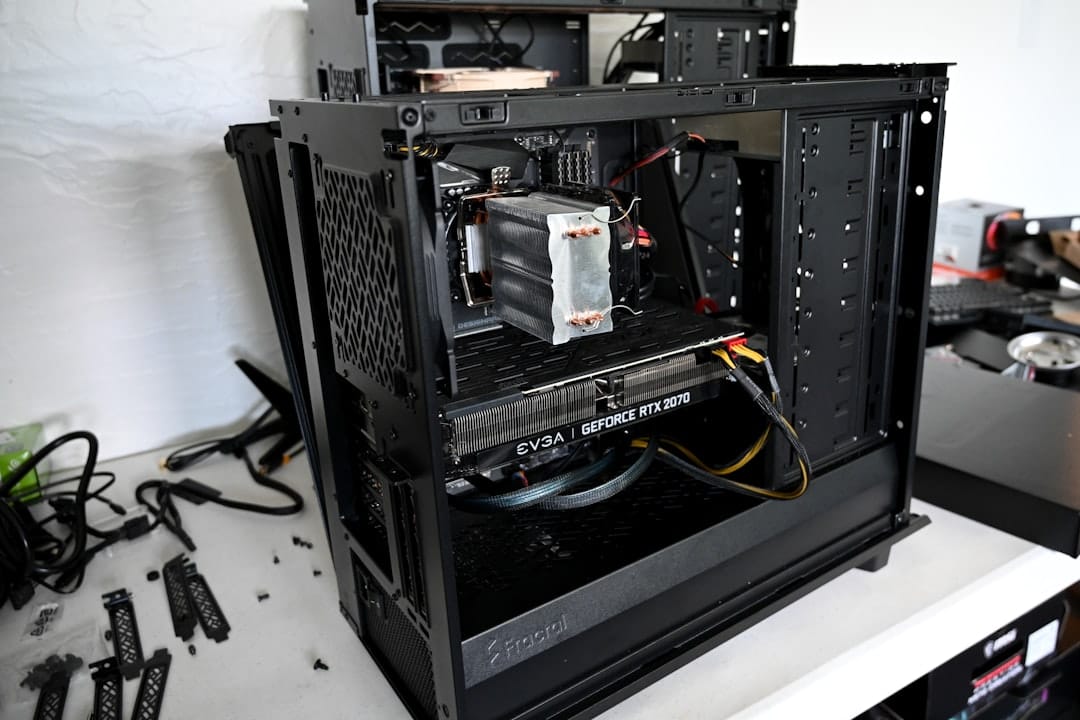
Proxmox runs on standard x86-64 hardware. You do not need a dedicated server rack — many people run it on mini PCs, old laptops, or refurbished business desktops.
| Specification | Minimum | Recommended | N100 Optimized |
|---|---|---|---|
| CPU | Any 64-bit x86 with VT-x | 4 cores, VT-x + VT-d | Intel N100 (4C/4T, 6W TDP) |
| RAM | 4 GB | 16 GB | 16–32 GB DDR5 |
| System Storage | 32 GB SSD | 120 GB SSD | 256 GB NVMe |
| Data Storage | Same drive | Separate HDD/SSD | 1–4 TB HDD or NVMe |
| Network | 100 Mbps | 1 Gbps | 2.5 Gbps |
| Power Draw (idle) | — | — | 6–10 W |
VT-x and VT-d are Intel CPU features that must be enabled in your BIOS. VT-x allows virtualisation; VT-d allows passing physical hardware (like a USB controller or GPU) directly into a VM. Check your BIOS settings under "CPU Configuration" or "Advanced" and ensure both are enabled before you start.
For a curated list of mini PCs that work well with Proxmox, see best low-power mini PCs for 2026.
Installation Steps
This section follows a numbered format so you can work through it step by step without losing your place.
-
Download the Proxmox VE ISO from proxmox.com
Navigate to https://www.proxmox.com/en/downloads and click "Proxmox VE". Download the latest ISO — at the time of writing, Proxmox VE 8.x is current. The file will be around 1.2 GB.
-
Create a bootable USB with Balena Etcher or Rufus
On macOS or Linux, download Balena Etcher from https://etcher.balena.io. On Windows, Rufus from https://rufus.ie is a reliable alternative. Insert a USB drive of at least 2 GB, open your flashing tool, select the Proxmox ISO, select your USB drive, and click Flash. The process takes two to three minutes.
Warning: this will erase everything on the USB drive. Double-check you have selected the USB drive and not your system drive.
-
Boot from USB and follow the installer
Insert the USB drive into your target machine, power it on, and enter the boot menu (commonly F12, F11, ESC, or DEL — it varies by manufacturer). Select the USB drive. The Proxmox installer will load in about 30 seconds.
- Click Install Proxmox VE (Graphical)
- Accept the licence agreement
- Select the target hard drive for installation. If you have a dedicated NVMe or SSD for the system, select that one
- Set your country, timezone, and keyboard layout
- Create a root password and enter an email address (used for alert notifications)
-
Configure IP address — use a static IP
This step is critical. On the network configuration screen, you will see fields for Management Interface, Hostname, IP Address, Gateway, and DNS Server.
Do not use DHCP. A static IP ensures the Proxmox web interface is always at the same address. Choose an IP outside your router's DHCP range (e.g., if your router hands out 192.168.1.100–200, use 192.168.1.10). Your gateway is your router's IP address (commonly 192.168.1.1). For DNS, you can use your router's IP or a public DNS like 1.1.1.1.
Example values:
IP Address: 192.168.1.10/24 Gateway: 192.168.1.1 DNS Server: 1.1.1.1 Hostname: pve.local -
Access the web UI at https://your-ip:8006
The installer will complete and prompt you to reboot. Remove the USB drive and let the machine restart. On another computer on the same network, open a browser and navigate to:
https://192.168.1.10:8006Your browser will show a security warning about an untrusted certificate — this is normal. Click "Advanced" and "Proceed anyway". Log in with username
rootand the password you set during installation. -
Apply post-install optimizations: remove enterprise repo, add no-subscription repo
Proxmox ships configured to use its enterprise repository, which requires a paid subscription. For home use, you want the free "no-subscription" repository. In the web UI, click on your node name in the left panel (it will look like
pve), then click Shell. Run these commands one by one:# Disable the enterprise repository echo "# deb https://enterprise.proxmox.com/debian/pve bookworm pve-enterprise" \ > /etc/apt/sources.list.d/pve-enterprise.list # Add the no-subscription repository echo "deb http://download.proxmox.com/debian/pve bookworm pve-no-subscription" \ > /etc/apt/sources.list.d/pve-no-subscription.list # Update package lists apt update && apt full-upgrade -yIf Proxmox VE 8 is using the
cephenterprise repo, disable that too:echo "# deb https://enterprise.proxmox.com/debian/ceph-quincy bookworm enterprise" \ > /etc/apt/sources.list.d/ceph.list -
Run the community post-install script
The Proxmox community maintains a widely-used post-install script that automates common setup tasks: disabling the subscription nag popup, configuring repositories, and optionally enabling dark mode. Run it from the Proxmox shell:
bash -c "$(wget -qLO - https://github.com/tteck/Proxmox/raw/main/misc/post-pve-install.sh)"The script will ask you several yes/no questions. For a home server, answering yes to all prompts is generally safe. It disables the enterprise repo, enables no-subscription, and removes the "No valid subscription" popup that appears on every login.
First Boot: Web UI Walkthrough
After logging in, take a moment to understand the interface before touching anything else.
Left panel — the tree:
- Datacenter is the top level. Here you manage cluster-wide settings like backup schedules, user permissions, and firewall rules.
- pve (or whatever hostname you chose) is your physical node. Click it to see CPU usage, RAM usage, and network statistics for the entire machine.
- local and local-lvm are the default storage locations.
localstores ISOs and container templates.local-lvmstores VM disks and container filesystems using LVM thin provisioning.
Right panel: When you click on a node or VM, the right panel shows Summary, Console, Hardware, Options, and Task History tabs. The Summary tab is where you see live graphs.
Top right: The task log appears here. Every action Proxmox takes — creating a container, starting a VM, running a backup — generates a task you can click to see full output.
Power Optimization for Low-Power Hardware
If you are running Proxmox on an N100 or similar low-power mini PC, a few configuration changes will significantly reduce idle power draw.
Set the CPU governor to powersave:
# Install cpufrequtils if not present
apt install -y cpufrequtils

# Set governor to powersave
cpufreq-set -g powersave

# Make it persistent across reboots
echo 'GOVERNOR="powersave"' > /etc/default/cpufrequtils
Verify current governor:
cat /sys/devices/system/cpu/cpu*/cpufreq/scaling_governor
You should see powersave on each line.
BIOS settings for N100 mini PCs:
Before installing Proxmox, enter your BIOS and configure:
- C-States: Enable all C-states (C1, C3, C6, C7) for deeper sleep during idle
- Intel Speed Shift: Enable if available
- Auto Power On: Set to "Last State" so the machine restarts after a power outage
- Fan control: Set to a quiet/silent profile — the N100 generates very little heat
With these settings, an N100 mini PC running Proxmox with a few LXC containers typically idles between 6 and 12 watts.
Setting Up Your First LXC Container: Pi-hole in 10 Minutes
LXC containers are the fastest way to get your first service running. Pi-hole is a network-wide ad blocker that you configure on your router, and it is an ideal first container because it is low-resource and immediately useful.
-
Download a CT template (Debian 12)
In the Proxmox web UI, click on local storage in the left panel, then click CT Templates in the right panel. Click Templates at the top to open the template browser. Search for "debian-12", select "debian-12-standard", and click Download. Wait for the download to complete (watch the task log in the top right corner).
-
Create the LXC container
Click the Create CT button in the top right of the web UI.
- General tab: Set a Container ID (e.g., 100), hostname (e.g.,
pihole), and a root password - Template tab: Select the Debian 12 template you just downloaded
- Disks tab: 4 GB is sufficient for Pi-hole
- CPU tab: 1 core is enough
- Memory tab: 512 MB RAM is sufficient; set swap to 512 MB
- Network tab: Set the IP address to a static IP (e.g., 192.168.1.11/24), set the gateway to your router IP
- DNS tab: Leave as default or set to 1.1.1.1
Click Finish. The container appears in the left panel.
- General tab: Set a Container ID (e.g., 100), hostname (e.g.,
-
Start the container and open the console
Click on the
piholecontainer in the left panel. Click Start in the top right. Once it shows as running, click Console. A terminal window opens. Log in asrootusing the password you set. -
Install Pi-hole inside the container
In the console, run the official Pi-hole installer:
curl -sSL https://install.pi-hole.net | bashThe installer is interactive and walks you through all configuration steps. When prompted:
- Select your network interface (typically
eth0) - Choose an upstream DNS provider (Cloudflare at 1.1.1.1 is fast and private)
- Enable the web admin interface
- Enable the query log
At the end, the installer prints your Pi-hole admin URL and a temporary password.
- Select your network interface (typically
-
Point your router DNS to this IP
Log into your router admin interface (commonly at 192.168.1.1). Find the DHCP or DNS settings and change the primary DNS server to the IP you assigned to your Pi-hole container (e.g., 192.168.1.11). Save and reboot your router. All devices on your network will now have their DNS requests filtered through Pi-hole.
Access the Pi-hole dashboard at:
http://192.168.1.11/admin
Congratulations — your first LXC container is running a production service. Total time from starting step 1 to a working Pi-hole: typically 8 to 12 minutes.
For running Home Assistant inside a similar LXC container, see the Home Assistant low-power hardware guide.
Setting Up Your First VM: Ubuntu Server
While LXC containers are great for Linux services, you will eventually want a full VM — perhaps to run Windows, test a new Linux distribution, or run software that requires its own kernel.
Upload the Ubuntu Server ISO:
First, download the Ubuntu Server 24.04 LTS ISO from https://ubuntu.com/download/server. In the Proxmox web UI, click local storage, then ISO Images, then Upload. Select your downloaded ISO.
Create the VM:
Click Create VM in the top right.
- General tab: Set an ID (e.g., 101) and name (e.g.,
ubuntu-server) - OS tab: Select the Ubuntu ISO from local storage; set Guest OS type to Linux
- System tab: Enable the EFI disk and TPM 2.0 (required for Ubuntu 24.04)
- Disks tab: Set at least 20 GB; use VirtIO SCSI for best performance
- CPU tab: 2 cores to start
- Memory tab: 2048 MB (2 GB); Ubuntu Server needs at least 1 GB
- Network tab: Default bridge (vmbr0) is correct
Click Finish, then select the VM in the left panel and click Start. Open the Console tab and you will see the Ubuntu installer boot. Follow the on-screen installation steps just as you would on physical hardware.
Once Ubuntu is running, install the QEMU guest agent for better integration with Proxmox:
sudo apt update
sudo apt install -y qemu-guest-agent
sudo systemctl enable --now qemu-guest-agent
Then in the Proxmox web UI, click on the VM, go to Options, find "QEMU Guest Agent" and enable it. The web UI will now show the VM's IP address and support live snapshot features.
Proxmox Backup Configuration
Running services without backups is not a homelab — it is a ticking clock. Proxmox has a built-in backup system that can schedule automatic snapshots of your VMs and containers.
Two backup approaches:
Local backup stores backups on the same machine (a different storage pool or an attached drive). This protects against software failures but not hardware failures.
Proxmox Backup Server (PBS) is a separate free application that runs on another machine (or even in a VM) and provides incremental, deduplicated backups. For a serious homelab, PBS is worth setting up because it dramatically reduces backup storage size — deduplicated backups of similar systems can be 70–90% smaller than full backups.
Setting up a scheduled backup (local):
- In the web UI, click Datacenter at the top of the left panel
- Click Backup in the right panel
- Click Add
- Set a schedule (e.g., every day at 2:00 AM)
- Select storage (local or an attached USB drive)
- Select which VMs and containers to back up
- Set a retention policy (e.g., keep last 3 backups)
The backup will appear as a task in the log and you will receive an email notification if the address was configured during installation.
Manual backup for testing:
Right-click any VM or container in the left panel and select Backup. Choose storage, select "Stop" mode for a consistent backup, and click Backup Now. The backup file (.tar.zst for containers, .vma.zst for VMs) appears in the storage browser.
What to Run in Proxmox Next
Once you have Pi-hole running and your first Ubuntu VM installed, here is a popular sequence of next steps:
LXC Containers (easy, low-resource):
- Home Assistant — smart home automation hub; runs perfectly in an LXC with 2 GB RAM (setup guide)
- Nginx Proxy Manager — reverse proxy with a web GUI; manages SSL certificates automatically
- Uptime Kuma — monitors your services and alerts you when something goes down
- Vaultwarden — self-hosted Bitwarden-compatible password manager
- Jellyfin — media server for your personal video and music library
VMs (more resources, more isolation):
- TrueNAS Scale — NAS operating system with ZFS for data storage
- Windows 11 — for running Windows-only applications on your server
- pfSense or OPNsense — router/firewall VM to replace your home router
The community post-install script you ran earlier (from tteck's Proxmox Scripts repository) includes one-liner installers for nearly all of these. For example:
bash -c "$(wget -qLO - https://github.com/tteck/Proxmox/raw/main/ct/homeassistant.sh)"
After your installation is running smoothly, read the home server security hardening guide to lock down your setup before exposing any services to the internet.
Frequently Asked Questions
Is Proxmox good for beginners?
Proxmox has a reputation for being complex, but that reputation is somewhat undeserved for basic use. Installing it is no harder than installing Ubuntu, and the web interface handles the most common tasks — creating containers, starting VMs, managing backups — without requiring command-line work. The learning curve steepens when you want advanced networking (VLANs, bonding) or clustering, but for a single home server running a handful of services, beginners can be productive within an afternoon. The Proxmox wiki and the r/homelab and r/Proxmox communities are exceptionally active and helpful.
Can I run Proxmox on an Intel N100?
Yes, and the N100 is one of the most popular CPUs for Proxmox home servers in 2026. It supports VT-x virtualisation, has four cores for handling multiple containers simultaneously, and draws only 6 watts at idle — making it ideal for a server that runs 24/7. The main limitation is memory: most N100 mini PCs max out at 16 GB RAM, which is enough for 8–12 LXC containers or 2–3 lightweight VMs. If you need more memory, look at mini PCs based on the N305 or Core i3-N300 chips, which can support 32 GB. See the N100 homelab build guide for specific hardware recommendations and BIOS settings.
Proxmox vs Docker: which should I learn first?
If your only goal is to get applications running quickly and you are comfortable with the command line, Docker is faster to learn initially. If your goal is a flexible homelab that can grow — running different operating systems, providing isolation, supporting snapshots and backups — then Proxmox provides a stronger foundation. The good news is that the choice is not permanent. You can run Docker inside Proxmox containers, and many homelabbers do exactly that: Proxmox manages the infrastructure, Docker manages the applications. Starting with Proxmox and then adding Docker where it makes sense is a common and effective progression.
How much RAM does Proxmox VE need?
Proxmox itself requires approximately 1 GB of RAM to run. The practical minimum for a useful system is 4 GB, which leaves about 3 GB for containers and VMs. With 8 GB you can comfortably run six to eight LXC containers. With 16 GB you can run ten to fifteen containers plus one or two lightweight VMs simultaneously. RAM is the single most impactful upgrade you can make to a Proxmox host — if your mini PC supports it, always max out the RAM. Note that LXC containers are significantly more RAM-efficient than VMs: a Pi-hole container might use 50 MB while a full Ubuntu Server VM uses 500 MB minimum.
Can I run Proxmox and use the same machine as a NAS?
Yes, this is a common homelab setup called "Proxmox + TrueNAS in a VM" or simply running a NAS directly on the Proxmox host. The recommended approach is to run TrueNAS Scale or TrueNAS Core inside a Proxmox VM, then pass physical hard drives directly into that VM using PCIe passthrough (for a HBA card) or drive passthrough. This gives you ZFS protection for your data alongside Proxmox's VM management. Alternatively, for simpler setups, you can install Samba directly inside a Debian LXC container and share folders over the network. The tradeoff is that the Samba-in-LXC approach does not give you ZFS, while the TrueNAS VM approach requires enough RAM for both Proxmox and TrueNAS (TrueNAS recommends 8 GB minimum for itself).
Conclusion
Proxmox VE removes one of the biggest frustrations in home server management: the "I wish I could run this alongside that" problem. Once Proxmox is installed, adding a new service is a matter of minutes — create a container, run an installer, done. You can experiment freely knowing that if something breaks, you can roll back to a snapshot or restore from backup.
The path we covered in this guide — static IP configuration, repository setup, LXC container for Pi-hole, Ubuntu Server VM, scheduled backups — is the foundation that thousands of homelabbers rely on. From here, the logical next steps are setting up a reverse proxy so you can access services by name rather than IP, configuring Tailscale or WireGuard for secure remote access, and exploring what else your hardware can run.
The resources in this article will help you continue:
- Best low-power mini PCs for Proxmox in 2026
- N100 homelab build guide
- Docker vs LXC for low-power servers
- TrueNAS, Proxmox, and Unraid compared
- Home Assistant setup on low-power hardware
- Security hardening your home server after install
The hardest part is always the first install. You have done it — everything from here is just adding more services to a foundation that already works.
You may also like

Builds
Low Power Proxmox Homelab Build: Intel N100 Mini PC Guide (2026)
Build a Proxmox homelab on an Intel N100 mini PC for 6-12W idle power. Complete guide covering hardware selection, installation, LXC containers, and power optimization.
buildslow-powerlxc

Use Cases
Home Assistant on Low-Power Hardware: N100 Mini PC Guide (2026)
Best hardware for Home Assistant in 2026. Run HA on an Intel N100 mini PC at 8-12W idle. Covers HA OS bare metal, Proxmox LXC, and Docker Compose installation methods.
home-assistanthome-automationlow-power

Builds
Home Server vs Cloud: Real Cost Comparison Over 3 Years (2026)
We ran the numbers on real cloud subscription costs vs. a low power home server. Most households spend $885+/year on cloud services. A home server pays for itself in 4 months — then saves $870/year.
buildscost-comparisonelectricity
Related Tools
Ready to calculate your power costs?
Use our Power Calculator to estimate how much your server will cost to run 24/7.
Try Power Calculator