
← Back to Hardware Reviews
Old Laptop as Home Server: Complete 2026 Setup Guide
Turn your retired laptop into a capable home server for $0-210. Covers Ubuntu Server setup, lid-close fix, Docker services, ZFS storage, and why a laptop's built-in battery beats buying a UPS.
Published Feb 19, 2026Updated Feb 19, 2026
low-powerubuntu
Old Laptop as Home Server: Complete 2026 Setup Guide
That old laptop collecting dust in your closet might be the most practical home server you can build right now. In 2026, used business laptops from 2018-2022 are selling for $80-$180 on eBay and Facebook Marketplace, and they come with a feature no desktop server or mini PC can match: a built-in battery that acts as a mini-UPS. When the power flickers, your server keeps running. That single advantage makes an old laptop genuinely compelling for home NAS, media streaming, and self-hosted app workloads.
This guide covers everything from choosing the right laptop to running Docker containers headlessly, with 2026-accurate power numbers and real-world reports from the r/homelab, r/HomeServer, r/selfhosted, and r/DataHoarder communities.
2026 Update: Why Now Is a Good Time
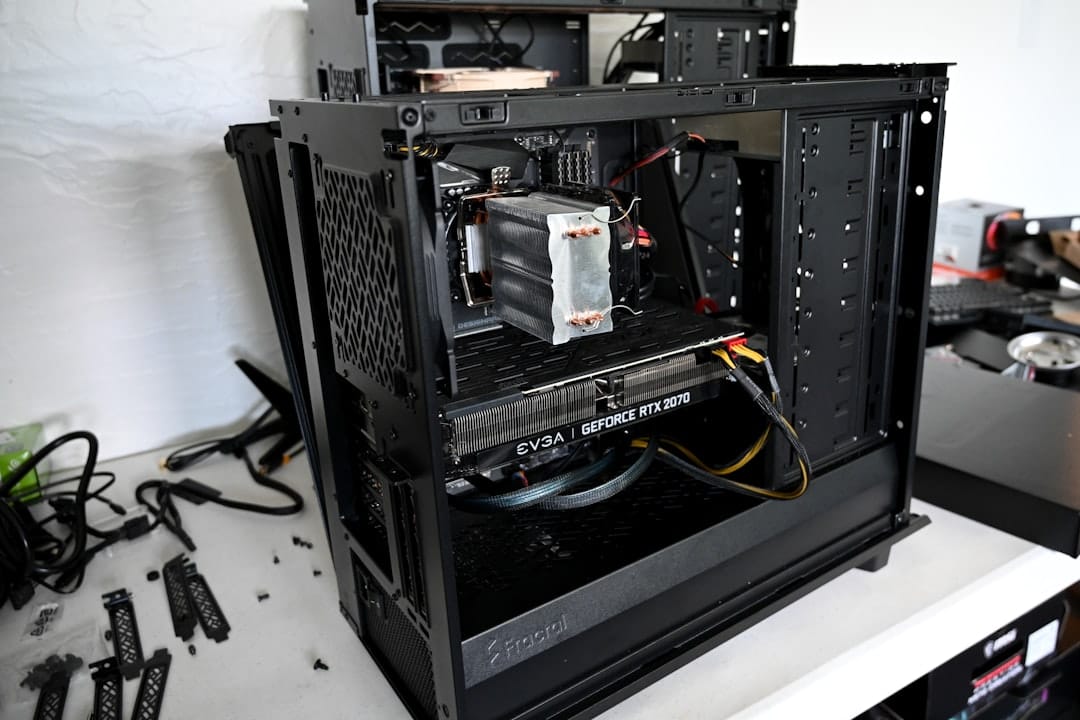
The wave of business laptop refresh cycles from 2021-2023 has flooded the used market. ThinkPads, EliteBooks, and Latitudes from the 8th-11th Gen Intel era are now cheap enough that buying one specifically to run as a server is justifiable. Key changes from a year ago:
- Prices dropped 15-25% on 8th-10th Gen business laptops since mid-2025
- More DDR4 units available as corporate fleets cycle out
- Ubuntu Server 24.04 LTS is now the recommended OS (26.04 is not yet worth the jump)
- CasaOS and Umbrel have matured as beginner-friendly alternatives to bare Docker
Is a Laptop Right for You? Core Decision Table

Before committing, compare your options honestly. The laptop makes sense in specific situations.
| Factor | Old Laptop | N100 Mini PC | Raspberry Pi 5 |
|---|---|---|---|
| Upfront cost | $0-180 | $150-250 | $80-120 |
| Idle power draw | 10-18W | 5-8W | 3-5W |
| Built-in UPS (battery) | Yes | No | No |
| RAM expandability | Usually yes | Limited | No (8GB max) |
| Storage options | 2x USB-3, SATA | 2x M.2/SATA | USB-3, micro SD |
| GPU for transcoding | Often (iGPU) | Intel UHD 730 | VideoCore VII |
| Noise level | Fan (varies) | Near-silent | Near-silent |
| Best for | NAS, Docker, media | Always-on Docker | Light workloads |
| Link | — | Best Low Power Mini PCs 2026 | — |
Bottom line: If you already own the laptop, use it. If you are buying new hardware, an N100 mini PC pulls less power at idle and is quieter. The battery UPS is the laptop's trump card for anyone who experiences frequent power outages.
Laptop Compatibility Matrix

Not every laptop makes a good server. The key variables are thermal headroom, RAM expandability, and USB-3 bandwidth for external drives.
| Generation | Example CPUs | Idle Power | RAM Max | Recommended? |
|---|---|---|---|---|
| Intel 8th Gen (2018) | i5-8250U, i7-8550U | 10-14W | 32GB DDR4 | Yes — sweet spot |
| Intel 10th Gen (2019-20) | i5-10210U, i7-10510U | 10-15W | 64GB DDR4 | Yes |
| Intel 11th Gen (2021) | i5-1135G7, i7-1165G7 | 8-13W | 64GB DDR4 | Yes — best iGPU |
| Intel 12th Gen (2022) | i5-1235U, i7-1255U | 8-12W | 64GB DDR5 | Yes, if under $200 |
| AMD Ryzen 3000 (2019) | Ryzen 5 3500U | 12-16W | 32GB DDR4 | Yes |
| AMD Ryzen 5000 (2021) | Ryzen 5 5600U | 8-14W | 64GB DDR4 | Yes — excellent |
| Intel 7th Gen or older | i5-7200U and below | 14-22W | 16-32GB | Marginal |
| Intel Atom / Pentium | N4100, N5100 | 6-10W | 8-16GB | Light workloads only |
Avoid: Gaming laptops with discrete GPUs. The dGPU idles at 5-15W even when unused, which defeats the low-power purpose entirely. Stick to thin-and-light business models: ThinkPad T/X/L series, HP EliteBook 800/840 series, Dell Latitude 5000/7000 series.
What You Need: Hardware Checklist
Minimum requirements for a functional home server:
- Laptop with 8GB RAM (16GB recommended for Docker workloads)
- 128GB internal SSD (the OS stays here; data goes on external drives)
- USB 3.0 ports (at least 2 for external drives)
- Ethernet port OR USB-to-Ethernet adapter
Recommended additions:
- 2.5GbE USB dongle (QNAP QNA-310G, ~$35) — eliminates the 1GbE bottleneck for NAS workloads
- External drives — shucked desktop drives offer the best GB-per-dollar value
- Smart plug (TP-Link Kasa or similar) — monitors actual power draw, confirms your savings
- USB hub with power delivery — if running multiple external drives
Community Reports: Real-World Setups
These are real posts from the homelab and home server communities, showing how people actually use old laptops as servers.
2.5Gb network troubleshooting — One user ran into the classic USB-to-2.5GbE adapter problem: the adapter worked fine on Windows but needed the r8152 kernel module on Ubuntu. After loading the module, they hit sustained 230 MB/s from their laptop NAS to a desktop over 2.5GbE. The QNAP QNA-310G is the most commonly recommended dongle for Linux compatibility. (r/homelab)
Photo organizer for family — A redditor set up Immich on an old ThinkPad to solve their mother's "1,800 photos in random folders" problem. Total cost was $0 (existing hardware) plus about 20 minutes of setup time. The laptop's battery meant the server survived two power blips during the initial photo import without losing data. (r/HomeServer)
Birthday laptop server — A community member ran their 2015-era laptop as a home server until the battery finally failed after years of always-on use. They noted the irony of the battery dying at a ceremonial "birthday" — but also that the laptop had served as a reliable mini-UPS for its entire lifespan. The lesson: laptop batteries do degrade under constant use, so plan for it. (r/HomeServer)
Laptop as NAS in a "nook" — A user tucked a laptop into a small shelf nook as a dedicated NAS, with two USB drives hanging off it. Lid closed, running headless, pulling 12W at idle. They mentioned the closed-lid setup required disabling the lid-close sleep trigger (covered in the setup steps below). (r/homelab)
Nextcloud on a laptop — A thread asking whether Nextcloud is always the answer for self-hosted file sync. The consensus: yes, Nextcloud via Docker Compose is the standard starting point for personal cloud storage on a laptop server, especially paired with an external drive for the data directory. See our Nextcloud Docker Compose setup guide for the exact configuration. (r/selfhosted)
Getting started advice — A newcomer asking what to do with an old laptop got strong consensus from the community: start with Ubuntu Server, install Docker, pick one service (Pi-hole or Nextcloud), learn how it works, then expand. Avoid trying to run everything at once. (r/HomeServer)
Shucking drives for storage — A DataHoarder update thread about finding 4TB Seagate drives on sale and shucking them into USB enclosures. The author noted that shucked drives in USB-3 enclosures connected to a laptop NAS hit 115-130 MB/s sustained sequential, which is plenty for media serving and backups. (r/DataHoarder)
NAS startup path — A thread comparing approaches for first-time NAS builders. The laptop path won for people with existing hardware: lower cost, faster setup, and the UPS battery advantage. The trade-off is less expandability versus a dedicated NAS build. (r/HomeServer)
Step-by-Step Setup: From Laptop to Home Server
Step 1: Verify Hardware and Clean Thermals
Before installing anything, physically inspect the laptop. Open the bottom panel (most have accessible vents), clear dust from the heatsink fins with compressed air, and check that the fan spins freely. A dusty laptop server will throttle under load and run 10-15°C hotter than it should.
Thermal repaste is worth doing if the laptop is over 3 years old:
- Remove the heatsink screws (usually 3-4 Phillips)
- Clean old paste with 90%+ isopropyl alcohol and a lint-free cloth
- Apply a pea-sized dot of Thermal Grizzly Kryonaut or similar
- Reinstall heatsink and verify temperatures under load
Before repaste: expect 85-95°C under sustained load. After repaste: typical results are 65-78°C, with lower fan speeds and less throttling.
Step 2: Install Ubuntu Server 24.04 LTS
Download the Ubuntu Server 24.04 LTS ISO and flash it to a USB drive with Balena Etcher or dd. Boot from USB (usually F12 or F2 on startup) and run the installer. Select:
- Minimal installation
- OpenSSH Server (check this box during install)
- No additional snaps for now
After install, run the standard update sequence:
sudo apt update && sudo apt upgrade -y
sudo apt install -y htop curl wget git unzip net-tools
Step 3: Disable Lid-Close Sleep (Critical for Headless Operation)
This is the most commonly missed step. By default, closing the laptop lid suspends the system. For a headless server, you need the lid closed permanently while the system stays awake.
Edit the logind configuration:
sudo nano /etc/systemd/logind.conf
Find and change these lines:
HandleLidSwitch=ignore
HandleLidSwitchExternalPower=ignore
HandleLidSwitchDocked=ignore
Save and restart the service:
sudo systemctl restart systemd-logind
Close the lid. SSH in and confirm the server is still responding. If it is not, double-check that all three HandleLid lines are set to ignore and not commented out.
Step 4: Configure Static IP
For a server, a static IP (or a DHCP reservation on your router) is essential. The easiest approach in 2026 is a DHCP reservation: find the laptop's MAC address with ip addr, then set a fixed IP in your router's admin panel. This survives OS reinstalls.
Alternatively, configure a static IP via Netplan on Ubuntu:
sudo nano /etc/netplan/00-installer-config.yaml
network:
  version: 2
  ethernets:
    enp3s0:
      dhcp4: no
      addresses: [192.168.1.50/24]
      gateway4: 192.168.1.1
      nameservers:
        addresses: [1.1.1.1, 8.8.8.8]
Apply with sudo netplan apply.
Step 5: Enable Wake-on-LAN (Optional but Useful)
If you want to save power by letting the laptop sleep and waking it remotely, configure Wake-on-LAN. This requires enabling it in BIOS (look for "Wake on LAN" or "Remote Wakeup" in Power Management settings) and configuring the network interface:
sudo apt install -y ethtool
sudo ethtool -s enp3s0 wol g
Add this to /etc/rc.local or a systemd service to persist across reboots. See our Wake-on-LAN setup guide for the complete configuration.
Step 6: Install Docker and Docker Compose
curl -fsSL https://get.docker.com | sudo sh
sudo usermod -aG docker $USER
newgrp docker
sudo apt install -y docker-compose-plugin
Verify:
docker run hello-world
docker compose version
Step 7 (Alternative): Install CasaOS for Beginners
If you want a graphical app store instead of managing Docker Compose files manually, CasaOS is a solid option in 2026. It wraps Docker in a clean web UI with one-click installs for Nextcloud, Jellyfin, Pi-hole, and dozens of other apps.
curl -fsSL https://get.casaos.io | sudo bash
After install, access the dashboard at http://your-server-ip/. CasaOS is not a replacement for learning Docker, but it removes the initial friction for newcomers and is perfectly suitable for a personal NAS workload. The trade-off is slightly less flexibility than raw Docker Compose configurations.
Step 8: Mount External Drives Permanently
Identify your drives:
lsblk -f
Create mount points:
sudo mkdir -p /mnt/data1 /mnt/data2
Add them to /etc/fstab using UUID (not device name, which can change):
UUID=your-drive-uuid  /mnt/data1  ext4  defaults,nofail  0  2
UUID=your-drive-uuid  /mnt/data2  ext4  defaults,nofail  0  2
The nofail option is critical — it prevents the server from hanging at boot if a drive is disconnected.
BIOS Power Optimization
Most business laptops have BIOS settings that affect idle power draw significantly. Access BIOS on startup (usually F2 or Del) and configure:
- CPU power management: Set to "Balanced" or "Power Saver" (not "Performance")
- Turbo Boost: Disable if you do not need burst performance — saves 3-8W under light load
- Discrete GPU (if present): Disable or set to "Integrated Only"
- Wake timers: Disable unnecessary wake sources
- Screen: Set display to "Off after 1 minute" or disable the display entirely
See our BIOS power settings guide for a full walkthrough with screenshots for common laptop models.
Performance Benchmarks
These numbers reflect real-world measurements from the community on 8th-10th Gen Intel laptops running Ubuntu Server.
| Workload | Power Draw | Performance |
|---|---|---|
| Idle (no activity) | 10-15W | — |
| Light Docker (Pi-hole + Nextcloud) | 12-18W | Normal |
| File transfer via Samba (1GbE) | 15-22W | 110-115 MB/s |
| File transfer via 2.5GbE USB dongle | 18-25W | 220-240 MB/s |
| Jellyfin 4K HEVC transcode (software) | 45-60W | 1-2 streams |
| Jellyfin 4K direct play (no transcode) | 12-18W | 4-6 streams |
| ZFS scrub (2x4TB drives) | 25-38W | 140 MB/s scrub rate |
| Peak CPU burst | 40-55W | <60 seconds, then throttle |
For media server workloads, direct play is always preferable. Software transcoding on a laptop CPU is CPU-intensive and will push power consumption toward the upper range. Configure your clients to use compatible formats and avoid transcode entirely.
Optimization Tips
Reduce Idle Power with TLP
TLP is a Linux power management daemon designed for laptops. It applies aggressive power-saving settings automatically:
sudo apt install -y tlp tlp-rdw
sudo tlp start
TLP alone typically saves 2-5W at idle by managing CPU frequency scaling, disk spin-down timers, USB autosuspend, and PCIe ASPM. Check your power draw before and after with a smart plug.
Disable Unnecessary Services
# Check what is running
systemd-analyze blame

# Disable Bluetooth if not needed
sudo systemctl disable bluetooth

# Disable GUI/display manager if installed
sudo systemctl disable gdm lightdm
Set CPU Governor to Powersave
sudo apt install -y cpupower
sudo cpupower frequency-set -g powersave
Make it persistent across reboots:
echo 'GOVERNOR="powersave"' | sudo tee /etc/default/cpupower
sudo systemctl enable cpupower
This can drop idle draw by 1-3W on most Intel laptop CPUs.
Schedule ZFS Scrubs Off-Peak
If using ZFS, scrubs are CPU and IO intensive. Schedule them during off-hours:
sudo crontab -e
# Add:
0 2 * * 0 zpool scrub datapool
First Services to Run
Start with low-resource services that deliver immediate value, then expand.
| Service | RAM Usage | What It Does | Setup Guide |
|---|---|---|---|
| Pi-hole | ~100MB | Network-wide ad blocking | Pi-hole setup |
| Nextcloud | ~300MB | Personal cloud (photos, files, calendar) | Nextcloud guide |
| Immich | ~400MB | Google Photos replacement | Docker Compose |
| Vaultwarden | ~30MB | Self-hosted Bitwarden (passwords) | Docker Compose |
| Jellyfin | ~200MB (idle) | Media server | Jellyfin vs Plex |
| Home Assistant | ~500MB | Smart home automation | HA hardware guide |
A starter stack of Pi-hole + Nextcloud + Vaultwarden runs comfortably on 2GB of RAM and idles around 14W on a typical 8th Gen Intel laptop.
The Battery UPS Advantage: What This Actually Means
This deserves its own section because it is genuinely significant and often underestimated.
A dedicated NAS or mini PC plugged directly into the wall will hard-shutdown during a power outage. Unclean shutdowns corrupt ZFS transactions in progress, can corrupt databases (Nextcloud's SQLite or PostgreSQL, Home Assistant's database), and leave Docker containers in undefined states. Recovering from this is annoying at best and data-corrupting at worst.
A laptop server handles a power outage the same way your phone does: it switches to battery silently and keeps running. For most home power events — brief brownouts, a tripped breaker, someone unplugging the wrong thing — the laptop never even notices. For longer outages, you get a warning (battery percentage dropping) and time to issue a clean sudo shutdown now before the battery depletes.
The laptop battery is not a replacement for a proper UPS on a desktop server, but it provides the same core protection at no additional cost. For a beginner home server, this is a meaningful advantage.
Caveat: Laptop batteries degrade over time. After 2-3 years of always-on use, the battery capacity may drop to 20-40% of original, providing only 15-30 minutes of backup instead of 1-2 hours. Monitor battery health with:
upower -i /org/freedesktop/UPower/devices/battery_BAT0
Troubleshooting
| Problem | Likely Cause | Fix |
|---|---|---|
| Server sleeps when lid closes | logind.conf not configured | Set HandleLidSwitch=ignore in /etc/systemd/logind.conf |
| USB drive not mounting after reboot | Missing nofail in fstab | Add nofail option to /etc/fstab entries |
| 2.5GbE dongle not detected | Missing kernel module | sudo modprobe r8152 then add to /etc/modules |
| High idle power (>20W) | TLP not installed, Turbo Boost on | Install TLP, disable Turbo Boost in BIOS |
| Laptop throttling under load | Thermal paste dried out, dust | Clean heatsink, repaste CPU |
| Docker containers not starting after reboot | Docker not set to start on boot | sudo systemctl enable docker |
| SSH connection refused | SSH not installed or firewall blocking | sudo ufw allow 22 and verify sshd is running |
| Battery not recognized by OS | BIOS battery threshold set too low | Reset battery thresholds in BIOS power settings |
Cost Summary
| Item | Budget Option | Recommended Option |
|---|---|---|
| Laptop (existing hardware) | $0 | $0 |
| RAM upgrade (if needed) | $0-40 | $30 (16GB DDR4 SODIMM) |
| SSD (if needed) | $0-35 | $25 (256GB SATA SSD) |
| External storage (2x4TB shucked drives) | $80-150 | $120 |
| 2.5GbE USB dongle (QNAP QNA-310G) | $25 | $35 |
| Smart plug for power monitoring | $0-15 | $15 |
| Total upfront | ~$105-240 | ~$225 |
| Annual electricity cost (avg 13W) | — | ~$14/year |
| Annual electricity cost (avg 18W) | — | ~$20/year |
For comparison, a new N100 mini PC (see comparison guide) costs $150-250 before adding drives and accessories, idles at 5-8W, but offers no battery protection and less RAM expandability on budget models.
Conclusion
An old laptop is one of the most practical ways to start a home server in 2026, particularly if you already own one. The hardware is cheap or free, the battery provides meaningful power-outage protection, and a modern Linux stack (Docker, Ubuntu Server 24.04, TLP) keeps the power draw in the 10-18W range for typical workloads.
The setup requires a few laptop-specific steps — disabling lid-close sleep, optimizing BIOS power settings, and managing thermal paste — that desktop builds do not need. But none of them are difficult, and the result is a capable personal server that costs around $14-20 per year in electricity.
Start with Pi-hole and Nextcloud. Get comfortable with Docker Compose. Then add Immich, Vaultwarden, or Home Assistant as your needs grow. The laptop will handle it.
For further reading:
- Best Low Power Mini PCs 2026 — if you want to compare against purpose-built hardware
- Best Home Server for Beginners 2026 — broader beginner hardware guide
- Nextcloud Docker Compose Setup Guide 2026 — step-by-step Nextcloud on your laptop server
- Jellyfin vs Plex vs Emby — picking the right media server
- Home Assistant Low Power Hardware Guide — running HA on your laptop server
You may also like
Hardware
Best Home Server for Beginners 2026: Complete Starter Guide
New to home servers? Start here. Compare hardware options, discover 8 popular use cases, and learn how to run 10 self-hosted services on an Intel N100 mini PC for just $10/year in electricity.
beginnersgetting-startedlow-power

Hardware
Mac Mini M1/M2 Home Server: 4W Idle Power Guide (2026)
Transform your M1/M2 Mac Mini into an ultra-efficient home server. Complete guide covering power consumption, macOS vs Asahi Linux, Docker setup, and N100 comparison.
apple-siliconasahi-linuxlow-power

Hardware
Best Used Mini PCs for Home Servers in 2026 (Under $400)
A practical 2026 buyer guide to used enterprise mini PCs for home servers, with power, upgrade path, and budget-tier recommendations.
elitedesklow-poweroptiplex
Related Tools
Ready to build your server?
Check out our build guides for step-by-step instructions.
View Build Guides